
Authagonal
Documentation
Everything you need to get started with Authagonal — from creating your first tenant to wiring SSO, SCIM, and custom branding.
Getting Started
Authagonal gives each tenant a fully standards-compliant OIDC server. Every tenant gets its own issuer URL, discovery document, and token endpoints — no shared infrastructure between tenants. You can go from zero to a working login flow in under 5 minutes.
Create an Account
Sign up at authagonal.io and choose a slug for your account. The slug becomes your issuer domain: {slug}.authagonal.io. After creating your account, verify your email address to get started.
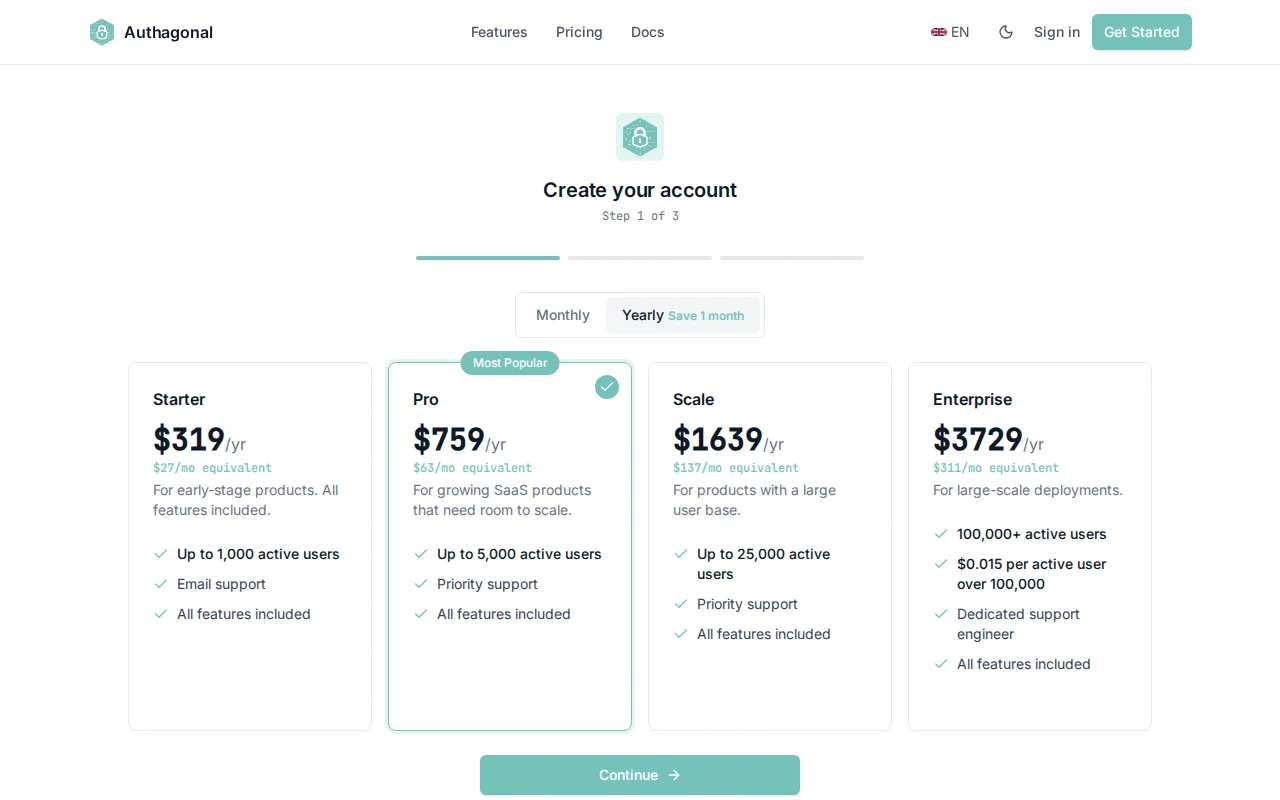
Choose a unique slug for your account during signup
Register a Client
Navigate to Clients in the portal sidebar and click Create. Enter a clientId and clientName for your application. Then configure at least one redirect URI — this is where users are sent after authenticating. For example: https://app.example.com/callback.
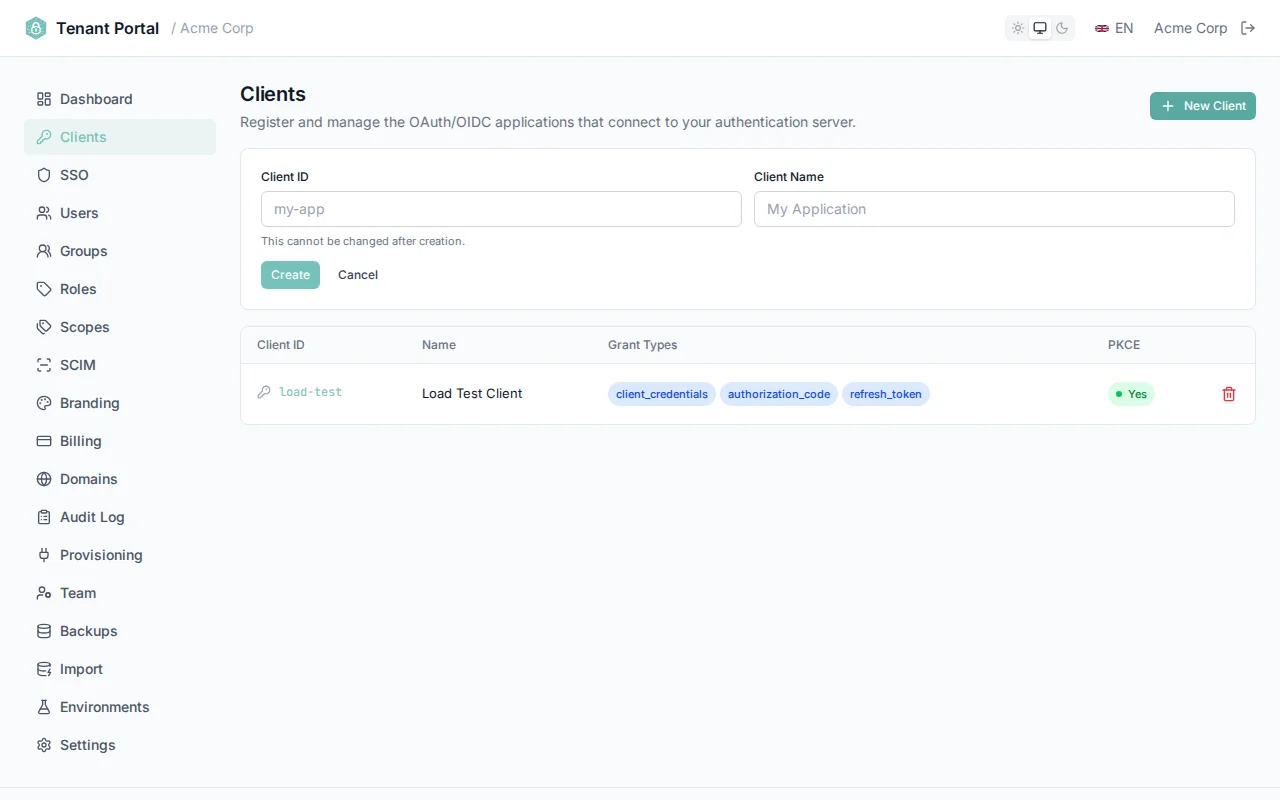
Register a new OAuth client in the portal
Local Development
http://localhost:3000/callback as a redirect URI for local development. Authagonal allows non-HTTPS redirect URIs for localhost origins.Your First Login
The fastest way to integrate is with oidc-client-ts, a lightweight OIDC client library for JavaScript and TypeScript applications.
import { UserManager } from 'oidc-client-ts';

const mgr = new UserManager({
  authority: 'https://acme.authagonal.io',
  client_id: 'my-app',
  redirect_uri: 'https://app.example.com/callback',
  response_type: 'code',
  scope: 'openid profile email',
});

// Redirect to login
mgr.signinRedirect();

// On callback page
const user = await mgr.signinRedirectCallback();
console.log(user.profile); // { sub, email, name, ... }
If you prefer a minimal approach without a library, you can use the standard OAuth 2.0 authorization code flow with plain fetch:
// 1. Redirect the user to the authorization endpoint
const authorizeUrl = new URL('https://acme.authagonal.io/connect/authorize');
authorizeUrl.searchParams.set('client_id', 'my-app');
authorizeUrl.searchParams.set('redirect_uri', 'https://app.example.com/callback');
authorizeUrl.searchParams.set('response_type', 'code');
authorizeUrl.searchParams.set('scope', 'openid profile email');
authorizeUrl.searchParams.set('code_challenge', codeChallenge);
authorizeUrl.searchParams.set('code_challenge_method', 'S256');
window.location.href = authorizeUrl.toString();

// 2. On the callback page, exchange the code for tokens
const res = await fetch('https://acme.authagonal.io/connect/token', {
  method: 'POST',
  headers: { 'Content-Type': 'application/x-www-form-urlencoded' },
  body: new URLSearchParams({
    grant_type: 'authorization_code',
    code: new URLSearchParams(window.location.search).get('code')!,
    redirect_uri: 'https://app.example.com/callback',
    client_id: 'my-app',
    code_verifier: codeVerifier,
  }),
});

const tokens = await res.json();
// tokens.id_token, tokens.access_token, tokens.refresh_token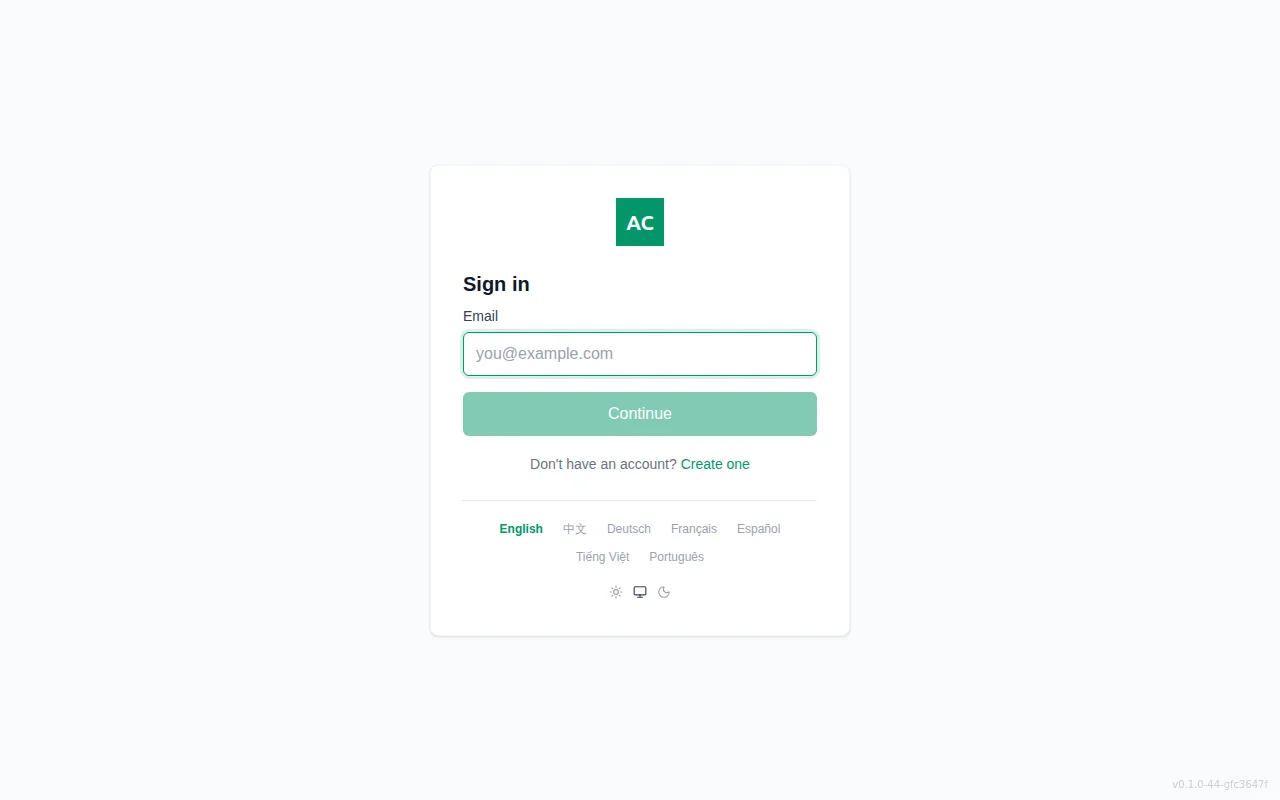
The default login page for your tenant
Sandbox Mode
{slug}-sandbox.authagonal.io) and can be refreshed from production at any time without affecting live users.Dashboard
The portal dashboard gives you a real-time overview of your tenant. It surfaces the metrics that matter most — user growth, authentication activity, and quick navigation to every feature in the portal.
Overview
At the top of the dashboard you will see a welcome message along with your current total user count. Below that, a Daily Active Users chart displays a 7-day history of unique users who authenticated each day, giving you a quick pulse on engagement trends.
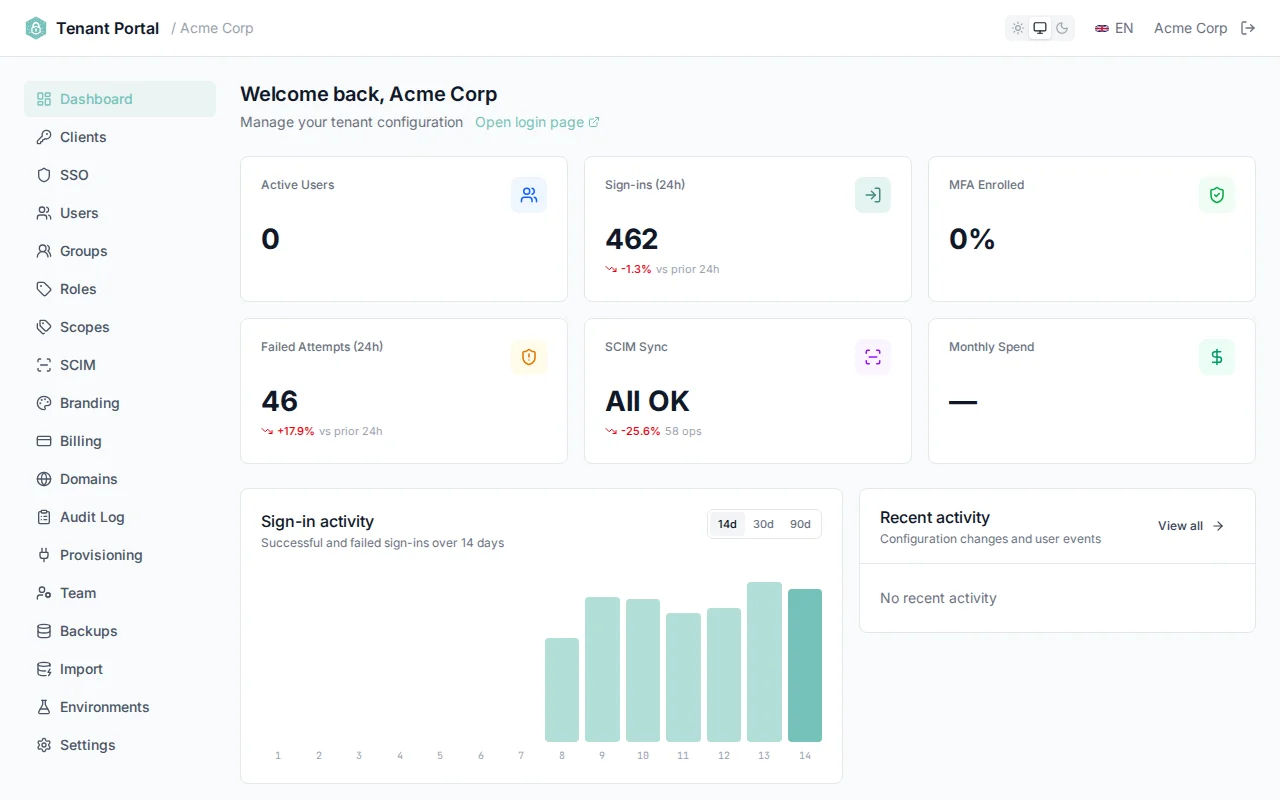
The dashboard home screen with DAU chart and activity overview
Activity Metrics
The activity metrics panel displays four stat cards summarizing key authentication events:
- Successful Logins — total completed authentication flows
- Failed Logins — incorrect credentials, locked accounts, or policy rejections
- Active Users — unique users who authenticated in the selected period
- SCIM Operations — user and group provisioning events from connected IdPs
Use the time range filters to switch between 24 hours, 3 days, 7 days, and 30 days. All stat cards and charts update to reflect the selected window.
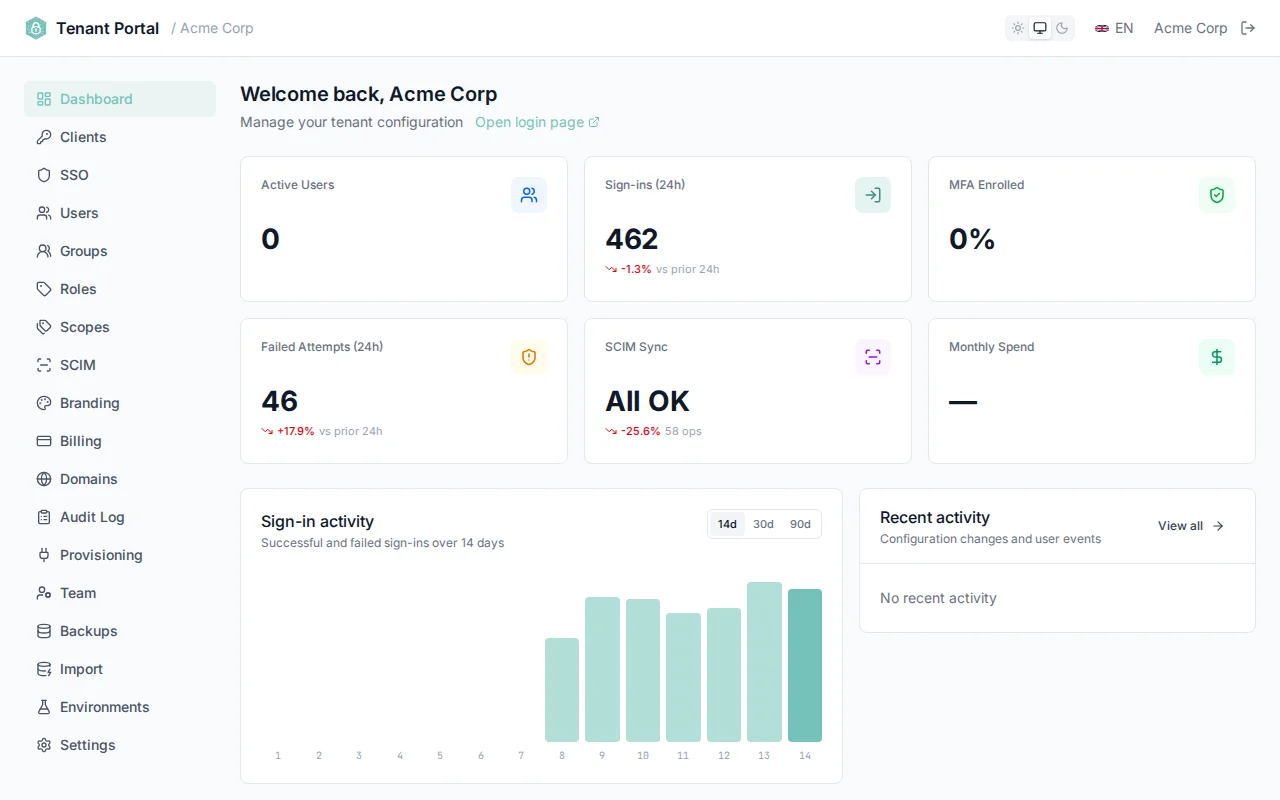
Activity metrics with configurable time range
Quick Navigation
Below the metrics panel, navigation cards link directly to every major feature: Clients, Users, Groups, Roles, SSO, SCIM, Branding, and Settings. Each card shows a brief description so new team members can orient themselves quickly.
Clients
OAuth clients represent the applications that authenticate users through your tenant. Each client has its own configuration for redirect URIs, scopes, grant types, token lifetimes, and MFA policy.
Client List
The Clients page displays a table of all registered clients. Each row shows the clientId, display name, allowed grant types as colored badges, and whether PKCE is enabled. Click any row to open the full configuration editor.
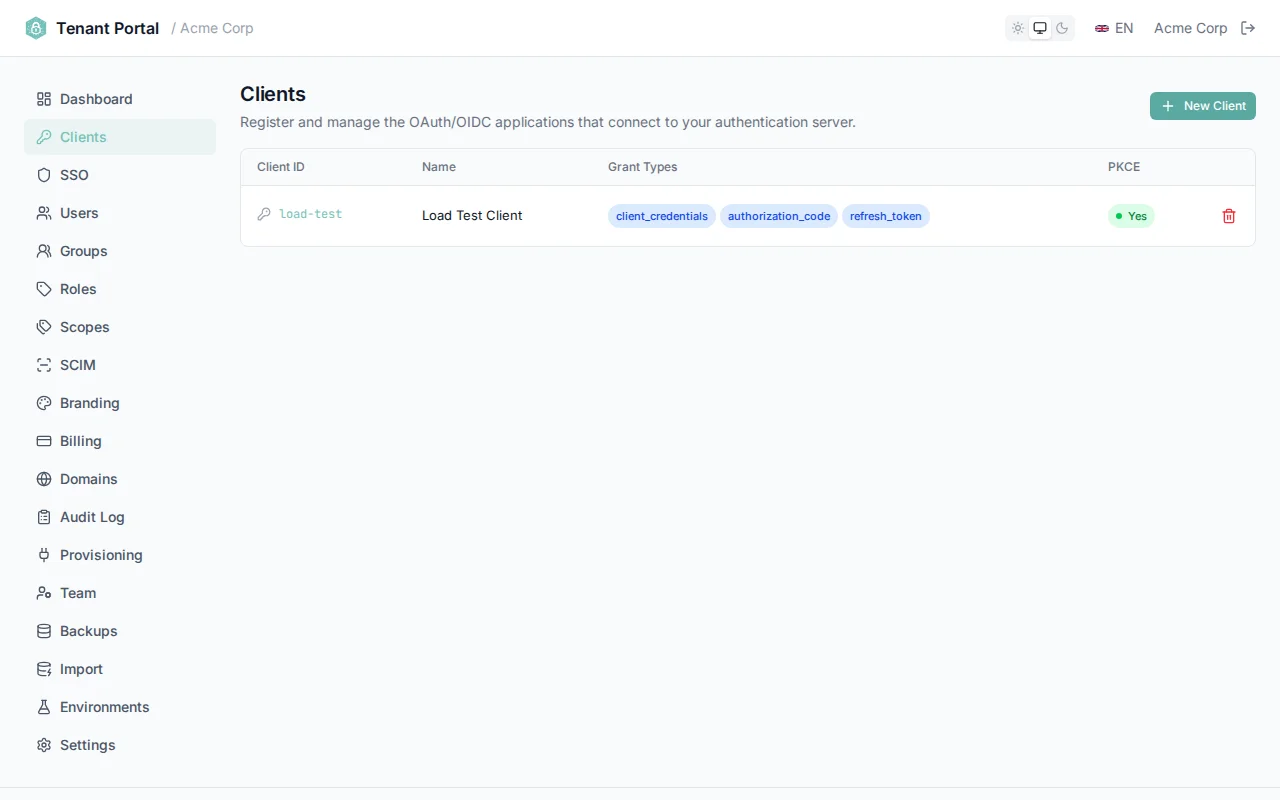
Client list with grant type badges and PKCE indicators
Creating a Client
Click Create Client to register a new application. You need to provide two fields:
clientId— a unique identifier for the client (e.g.my-spa)clientName— a human-readable display name
Register a new OAuth client
Deleting a Client
To delete a client, open the client configuration and click the Delete Client button at the bottom of the page. You will be asked to confirm before the client is permanently removed. All active sessions and tokens for the deleted client are immediately invalidated.
Client Configuration Reference
Each client has a comprehensive set of configuration options organized into several sections.
General Settings
| Setting | Description | Default |
|---|---|---|
clientName | Display name shown in consent screens and the portal | — |
requirePkce | Require Proof Key for Code Exchange on authorization code flows | On |
requireClientSecret | Require a client secret for token requests (disable for public clients like SPAs) | Off |
allowOfflineAccess | Allow the client to request refresh tokens via the offline_access scope | Off |
alwaysIncludeUserClaimsInIdToken | Include all user claims directly in the ID token instead of requiring a UserInfo call | Off |
includeGroupsInTokens | Include the user's group memberships as a groups claim in the ID token | Off |
PKCE Security
URIs
URI fields use a tag input — type a value and press Enter or comma to add it. Click the X on any tag to remove it.
| Setting | Description |
|---|---|
redirectUris | Allowed callback URLs after authentication. Must exactly match the redirect_uri parameter in authorization requests. |
postLogoutRedirectUris | Allowed URLs to redirect to after logout. |
allowedCorsOrigins | Origins permitted for cross-origin requests to the token and UserInfo endpoints. |
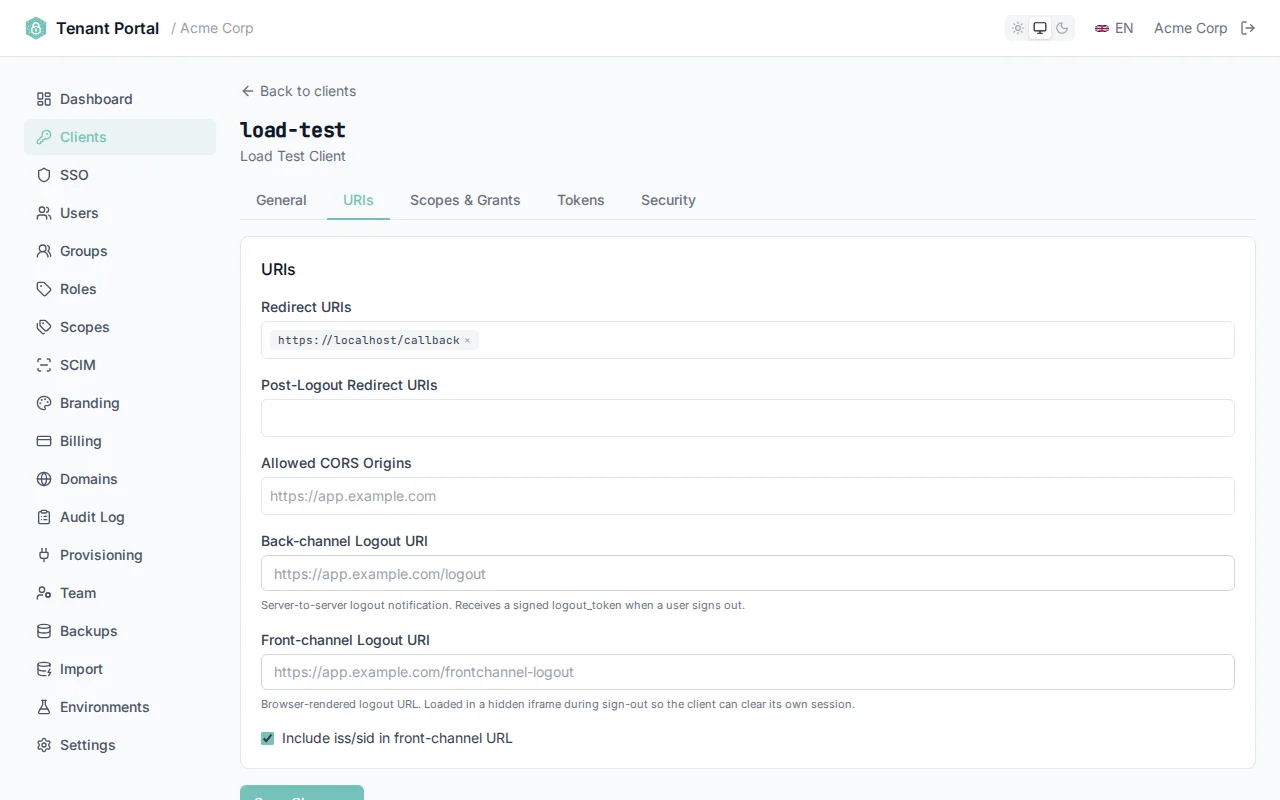
Tag input fields for configuring URIs
Scopes & Grant Types
| Setting | Options |
|---|---|
allowedScopes | openid profile email offline_access |
allowedGrantTypes | authorization_code client_credentials refresh_token device_code |
Token Lifetimes
| Setting | Description | Default |
|---|---|---|
accessTokenLifetimeSeconds | How long access tokens are valid | 1800 (30 min) |
identityTokenLifetimeSeconds | How long ID tokens are valid | 300 (5 min) |
authorizationCodeLifetimeSeconds | How long authorization codes are valid for exchange | 300 (5 min) |
absoluteRefreshTokenLifetimeSeconds | Maximum lifetime of a refresh token regardless of activity | 2592000 (30 days) |
slidingRefreshTokenLifetimeSeconds | Refresh token expiry resets on each use, up to the absolute lifetime | 1296000 (15 days) |
Configure token lifetimes per client
Logout URIs
Clients can register both back-channel and front-channel logout URIs. Either or both are optional — configure whichever matches how your application clears its session.
| Setting | Description |
|---|---|
backChannelLogoutUri | Server-to-server POST with a signed logout token. Reliable even when the user's browser is offline. |
frontChannelLogoutUri | Rendered in a hidden iframe during logout so the browser clears cookies and local storage. |
frontChannelLogoutSessionRequired | When on, the logout URL receives iss and sid query parameters so your app can correlate the logout with the specific session. |
Use both together
MFA Policy
Each client can override the tenant-wide MFA policy with a per-client setting. The MFA policy dropdown offers three options:
| Policy | Behavior |
|---|---|
| Disabled | MFA is never prompted for this client |
| Enabled | Users can optionally enroll in MFA; they will be prompted if enrolled |
| Required | All users must complete MFA to authenticate through this client |
Per-client MFA policy override
Enterprise SSO
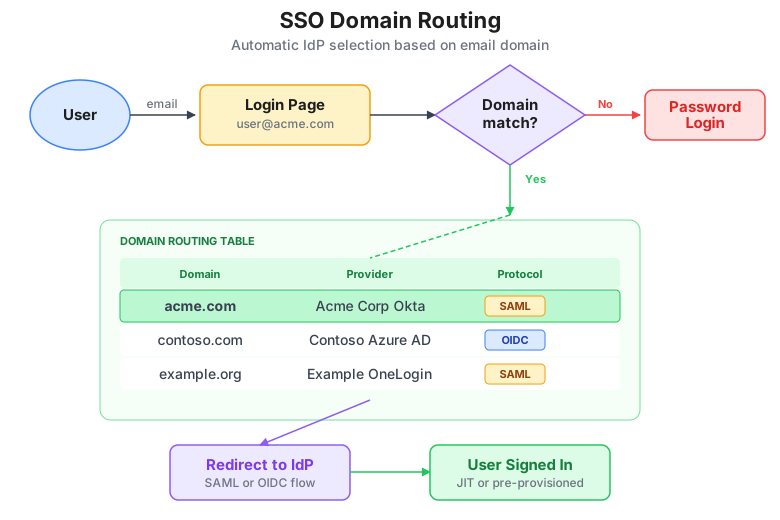
Enterprise SSO lets your customers bring their own identity provider. Authagonal supports both SAML 2.0 and OIDC federation with domain-based routing, so users are automatically directed to the correct IdP based on their email address.
Domain-based SSO routing
SAML 2.0 Connections
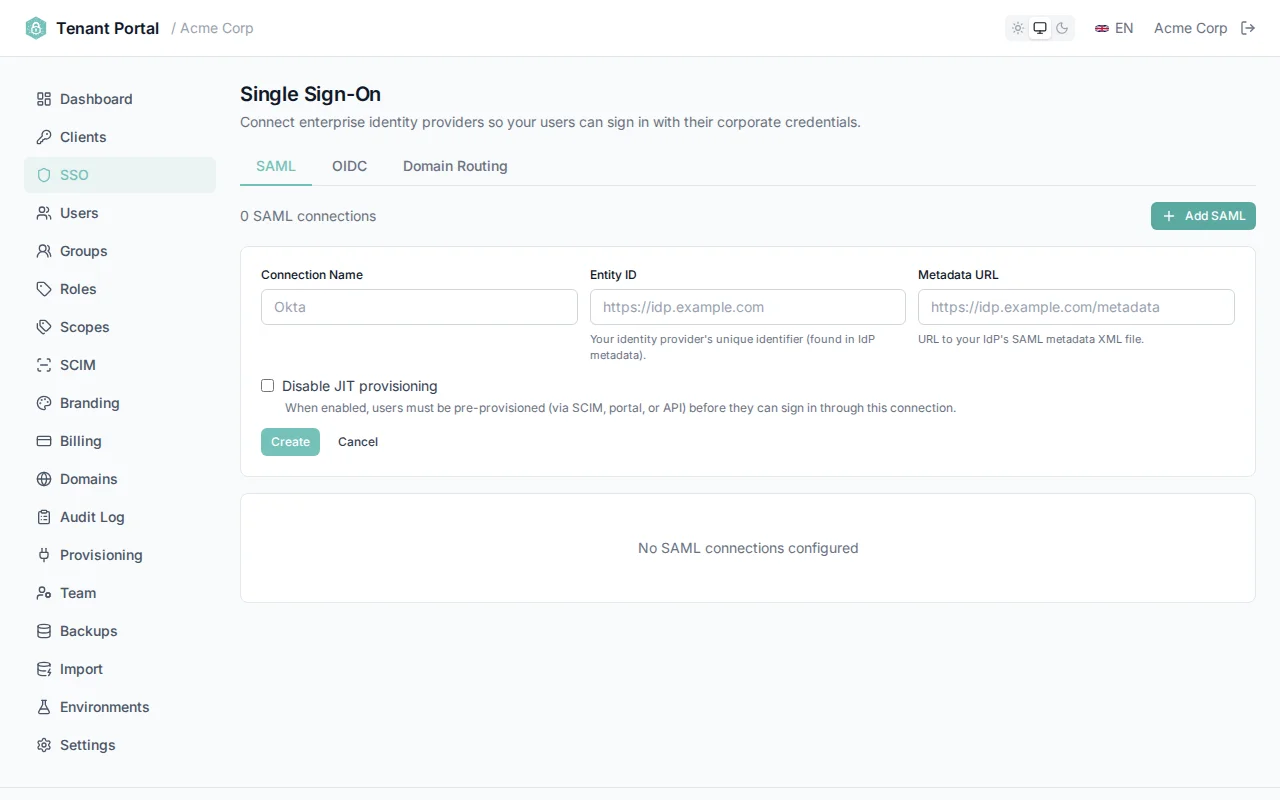
To create a SAML connection, navigate to the SSO page and select the SAML tab. Provide the following:
| Field | Description |
|---|---|
connectionName | A human-readable name for this connection (e.g. "Acme Corp Okta") |
entityId | The SAML Entity ID of the external identity provider |
metadataUrl | URL to the IdP's SAML metadata XML document |
When you save the connection, Authagonal fetches the metadata document and imports the IdP's signing certificate, SSO endpoint URL, and name identifier format. The metadata is periodically refreshed to pick up certificate rotations.
Create a SAML 2.0 SSO connection
OIDC Connections
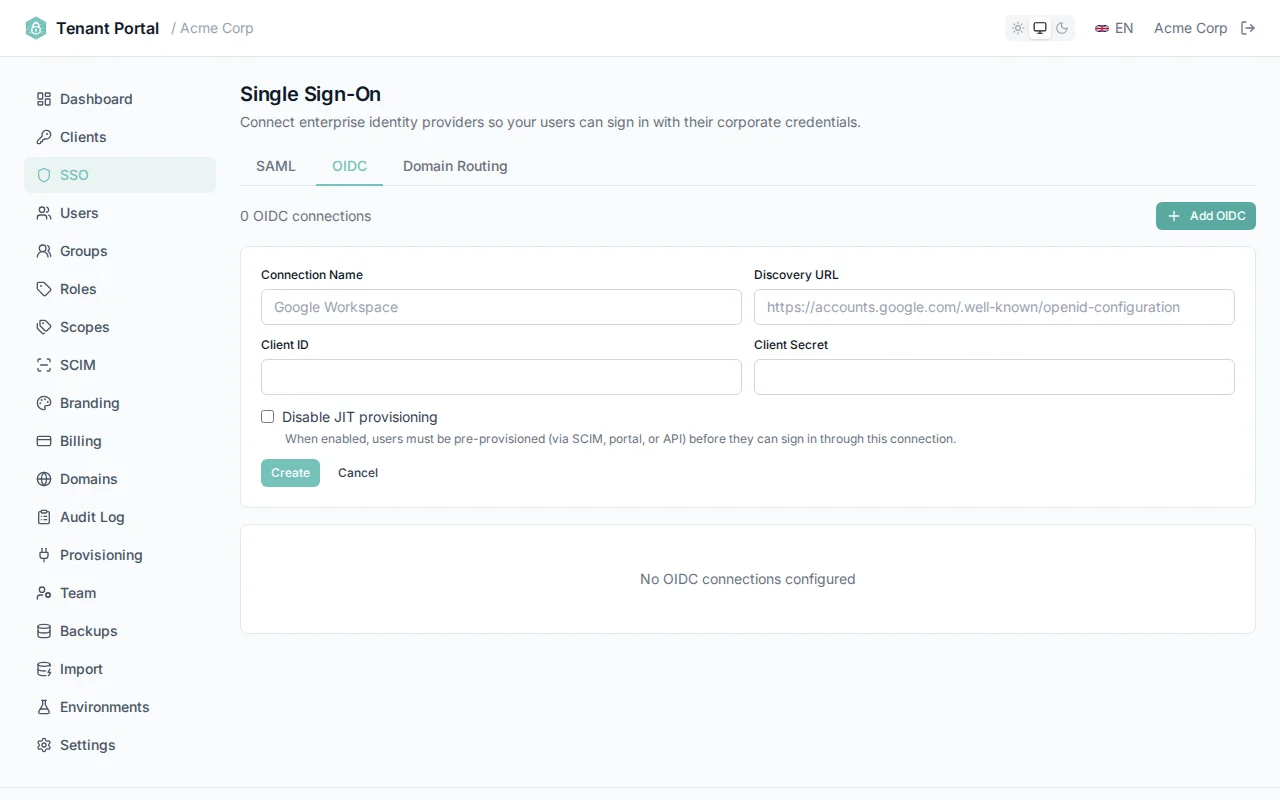
To create an OIDC federation connection, select the OIDC tab and provide:
| Field | Description |
|---|---|
connectionName | A human-readable name for this connection |
discoveryUrl | The OpenID Connect discovery URL (e.g. https://login.microsoftonline.com/{tenant}/v2.0/.well-known/openid-configuration) |
clientId | The client ID registered with the external IdP for this federation |
clientSecret | The client secret for the external IdP registration |
Create an OIDC federation connection
Domain Routing
Domain routing automatically redirects users to the correct identity provider based on their email domain. When a user enters their email on the login page, Authagonal checks if the domain portion (e.g. acme.com) matches any configured SSO connection. If it does, the user is seamlessly redirected to their organization's IdP.
| Email Domain | SSO Provider | Protocol |
|---|---|---|
| acme.com | Acme Corp Okta | SAML 2.0 |
| contoso.com | Contoso Azure AD | OIDC |
| example.org | Example OneLogin | SAML 2.0 |
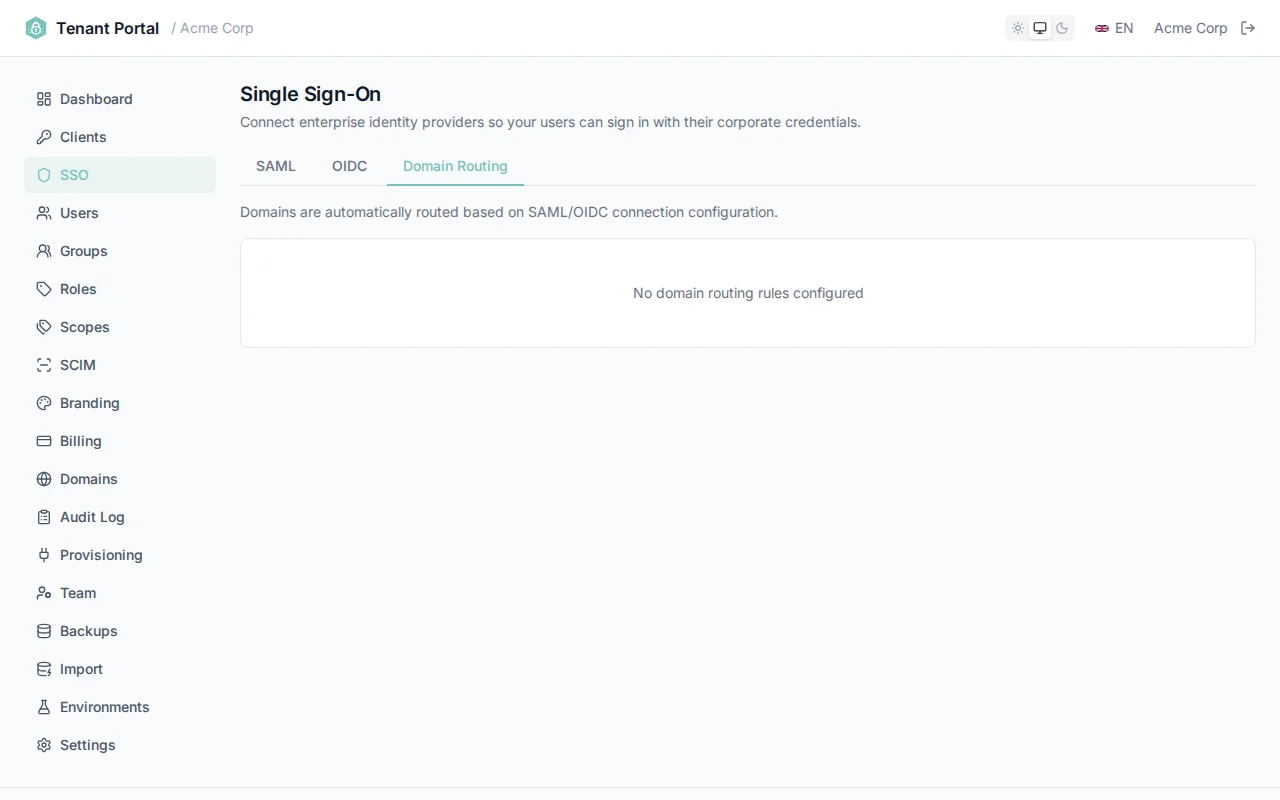
Domain routing maps email domains to identity providers
SP-Initiated Flow
/saml/{connectionId}/login or /oidc/{connectionId}/login.JIT Provisioning
By default, when a user signs in via SSO for the first time and doesn't already exist in your tenant, Authagonal creates their account automatically (Just-In-Time provisioning). This can be disabled per connection by checking Disable JIT provisioning when creating or editing the connection.
When JIT provisioning is disabled, only users who have been pre-provisioned — via SCIM, the portal's Users page, or the API — can sign in through that connection. Unknown users receive an access_denied error and are directed to contact their administrator.
Per-Connection Setting
Test Before Rollout
Users
The Users page lets you manage all end users in your tenant. You can search for users, view their details, create new accounts, and see how each user was provisioned.
Search & Pagination
The search bar supports filtering by email address or user ID. Search is debounced at 300ms so results update as you type without overwhelming the API. Results are paginated at 50 users per page — use the navigation controls at the bottom of the table to move between pages.
User Table
The user table displays the following columns for each user:
| Column | Description |
|---|---|
| The user's email address, shown with a verification badge if the email has been confirmed | |
| User ID | The unique identifier assigned to the user |
| Full Name | First and last name combined |
| Status | Active or Inactive — indicates whether the account is enabled |
| MFA | Enabled or Off — whether multi-factor authentication is enrolled |
| Source | SCIM or Local — how the user was created |
| Created | The date the user account was created |
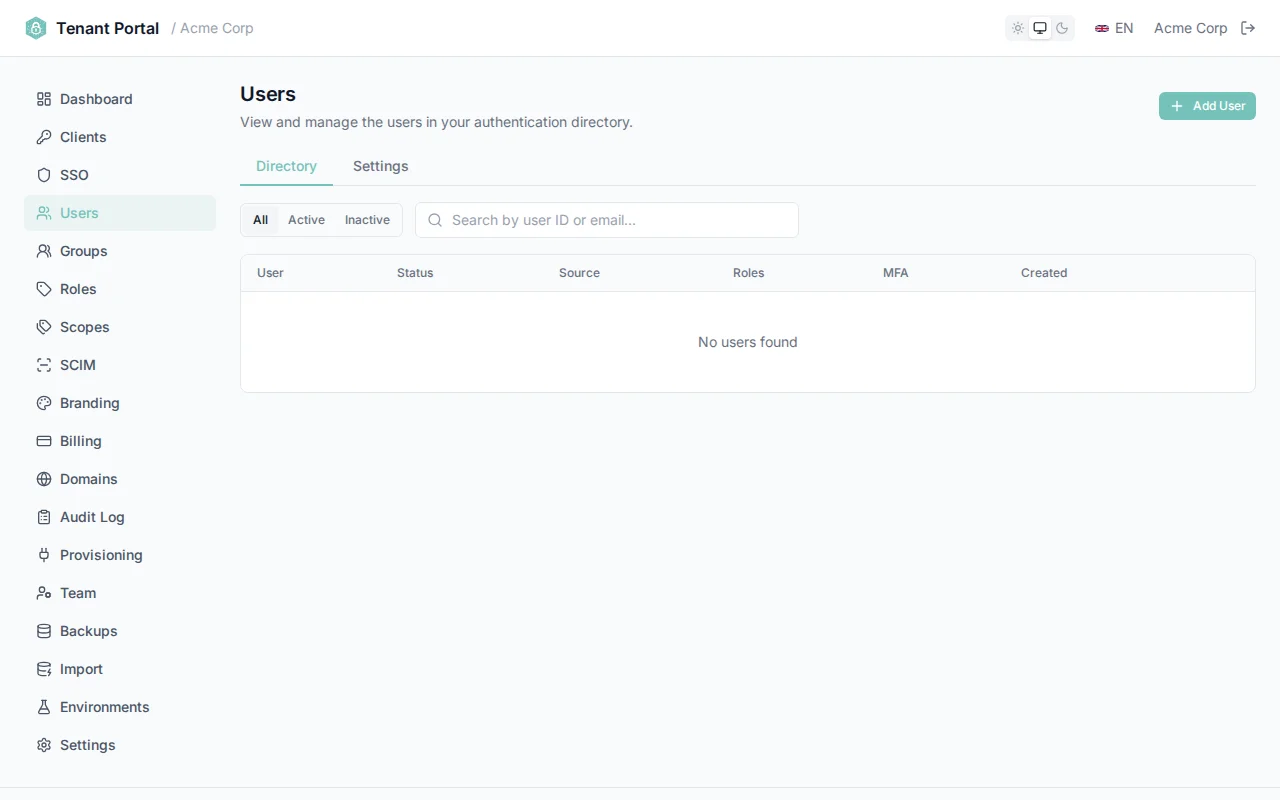
The user list with search bar and pagination
Creating Users
Click Create User to add a new local user. The form requires:
| Field | Description |
|---|---|
email | The user's email address (must be unique within the tenant) |
password | Initial password (minimum 8 characters, must meet your tenant's password policy) |
firstName | The user's first name |
lastName | The user's last name |
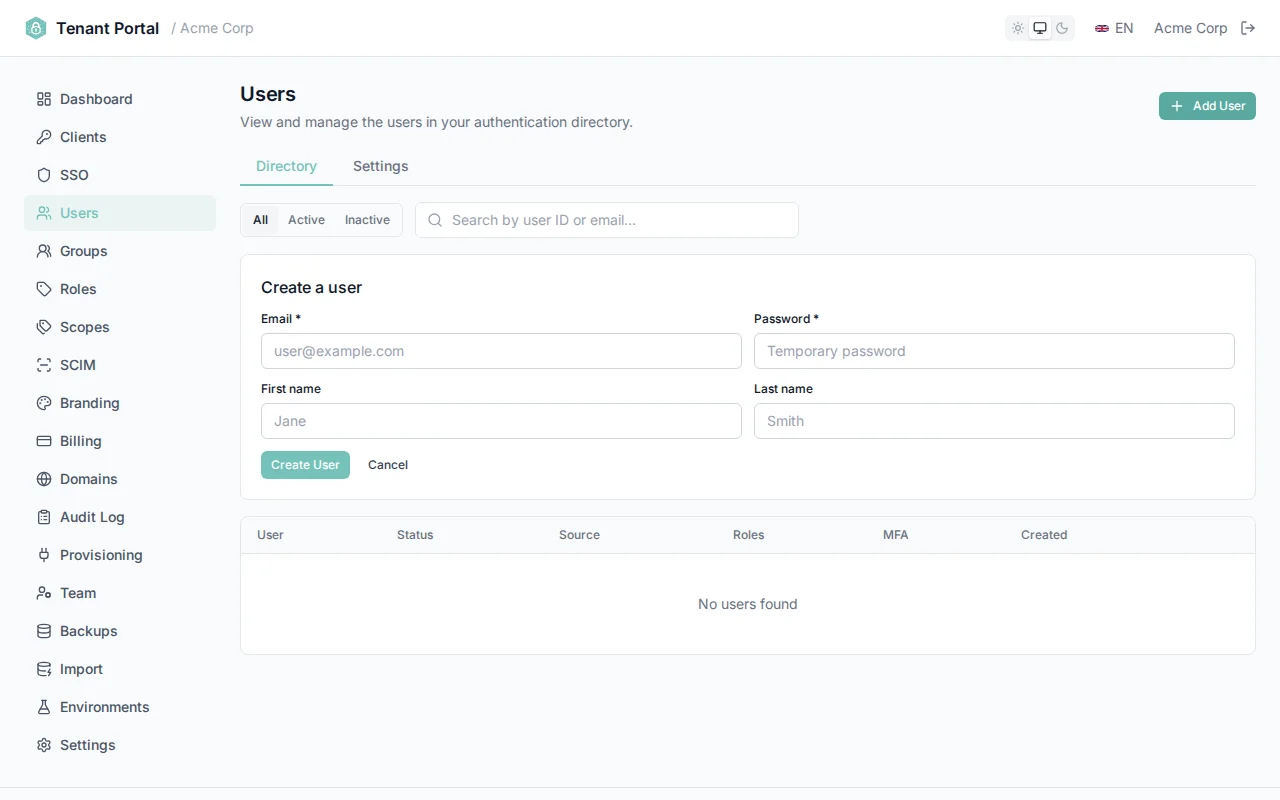
Create a new local user
SCIM-Provisioned Users
User Detail
Click any row in the user list to open its detail page. From there you can edit profile data, manage roles, reset MFA, review custom attributes, and delete the user.
Profile
Edit email, first/last name, phone, company, external ID, and toggle the user's active flag. Email changes must remain unique across the tenant; the API returns email_in_use if taken.
Roles
Assign and unassign roles defined on the Roles page. Role membership is surfaced in ID and access tokens when the client has includeRolesInTokens enabled.
Multi-Factor Authentication
See every MFA credential registered for the user — authenticator app (TOTP), WebAuthn/passkeys, and recovery codes — each with its own registered/last-used timestamps. Remove individual credentials, or reset all MFA. Resetting forces the user to re-enroll at next login.
Custom Attributes
Arbitrary key/value data attached to the user. Keys must be unique. Attributes are exposed via the user profile API and SCIM, and can be mapped to access-token claims by configuring a custom scope's userClaims.
Delete User
Permanently removes the user and all their MFA credentials. Type the user's email to confirm — there is no undo.
Groups
Groups let you organize users and include group membership in tokens. Groups can be created manually in the portal or provisioned automatically via SCIM from an external identity provider.
Group List
The Groups page shows all groups in your tenant with the following information:
| Column | Description |
|---|---|
| Group Name | The display name of the group |
| Members | The number of users currently in the group |
| Source | SCIM or Manual — how the group was created |
| Created | The date the group was created |
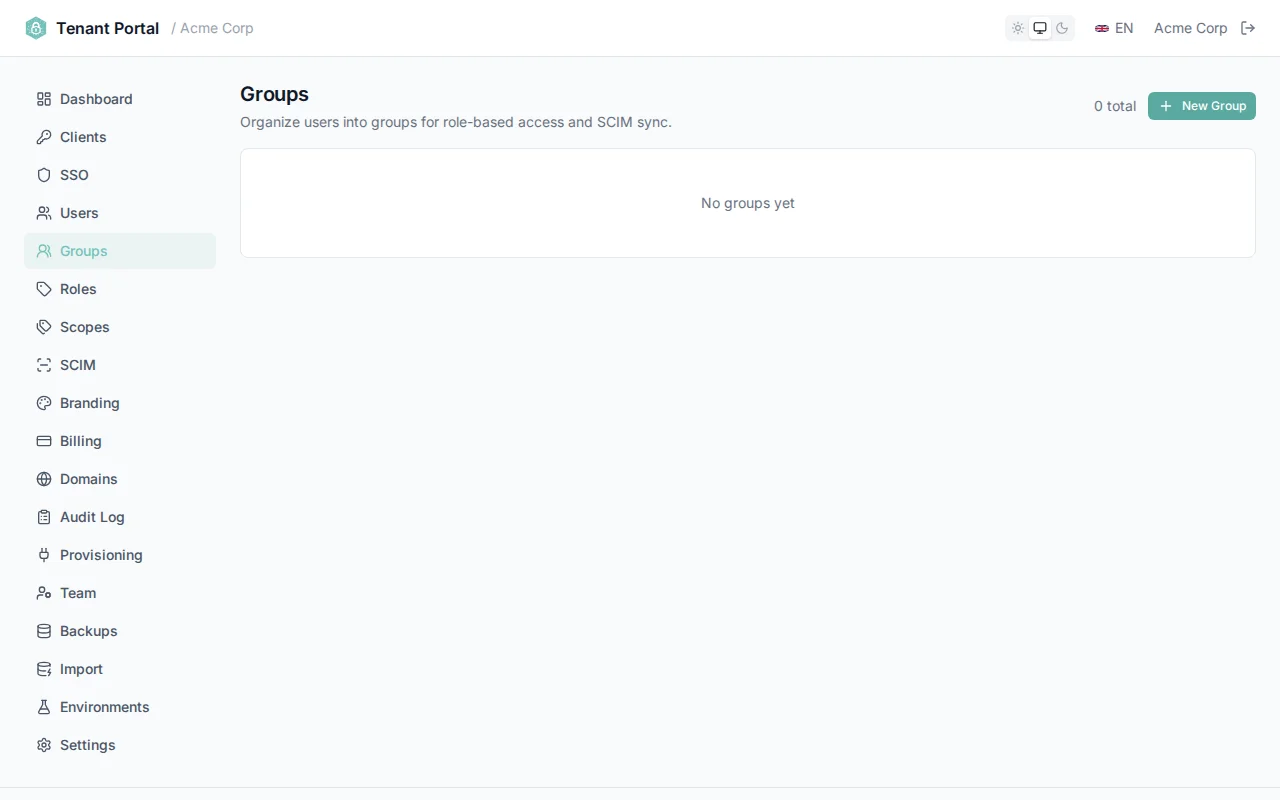
Group list with source indicators
Creating a Group
Click Create Group and enter a displayName for the group. Group names should be descriptive and unique within your tenant (e.g. "Engineering", "Billing Admins", "Beta Testers").
Group Detail & Members
Click any group to open the detail view. Here you can see all current members and manage membership:
- Add members — Enter a user ID to add a user to the group.
- Remove members — Click the remove button next to any member to remove them individually.
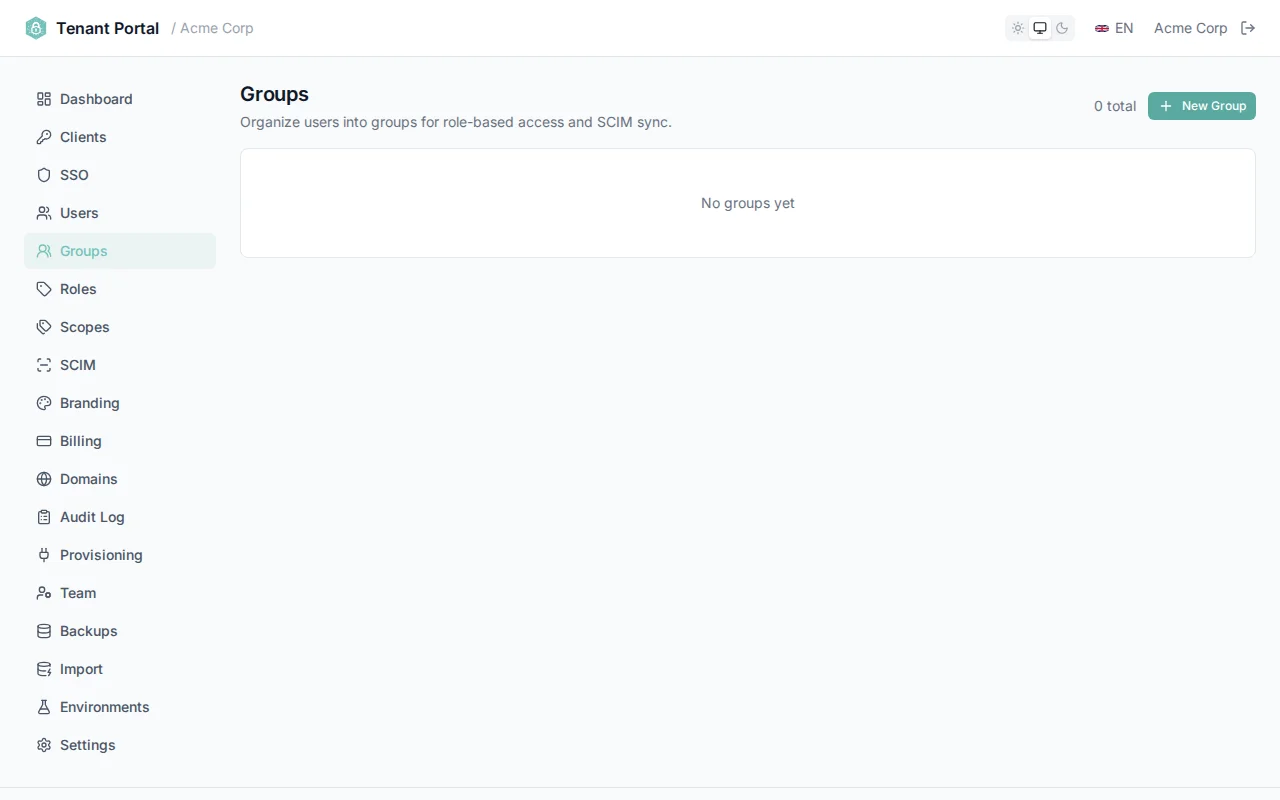
Manage group membership in the detail view
Groups in Tokens
When includeGroupsInTokens is enabled on a client, the ID token includes a groups claim containing the user's group memberships. Each entry includes the group id and name:
{
  "sub": "user-123",
  "email": "jane@acme.com",
  "groups": [
    { "id": "grp-001", "name": "Engineering" },
    { "id": "grp-002", "name": "Beta Testers" }
  ]
}
Enable per Client
includeGroupsInTokens setting is configured on each client individually. Navigate to the client's General Settings to enable it.Roles
Roles support role-based access control (RBAC) in your application. Define roles in Authagonal, assign them to users, and use the roles claim in tokens to enforce authorization in your application logic.
Managing Roles
The Roles page displays a table of all defined roles with inline editing. Each role has:
| Column | Description |
|---|---|
| Name | A unique identifier for the role (e.g. "admin", "editor", "viewer") |
| Description | A human-readable description of what the role grants |
| Created | The date the role was created |
Creating a Role
Click Create Role and provide a name and description. Role names should be concise and follow a consistent naming convention across your application (e.g. lowercase with hyphens: billing-admin).
Inline Editing
Roles support inline editing directly in the table. Click the pencil icon on any role to enter edit mode — the name and description fields become editable. Modify the values, then click the checkmark icon to save. Changes take effect immediately.
Deleting a Role
Click the delete icon on any role to remove it. You will be asked to confirm before the role is permanently deleted. Removing a role does not retroactively invalidate existing tokens — the role will be absent from new tokens issued after deletion.
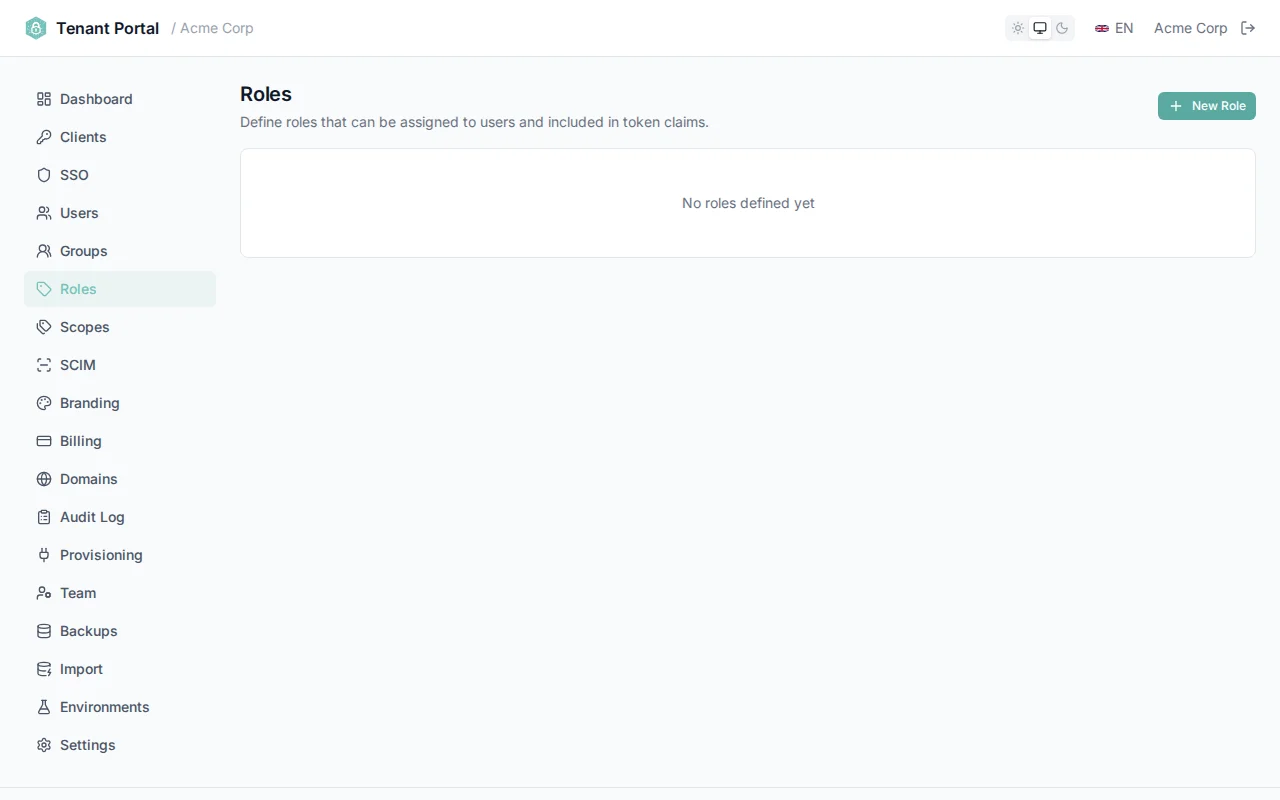
Inline editing of roles in the roles table
Roles in Tokens
Roles assigned to a user are included as a roles claim in the ID token. Your application can read this claim to make authorization decisions:
{
  "sub": "user-123",
  "email": "jane@acme.com",
  "roles": ["admin", "billing-admin"]
}
SCIM Provisioning
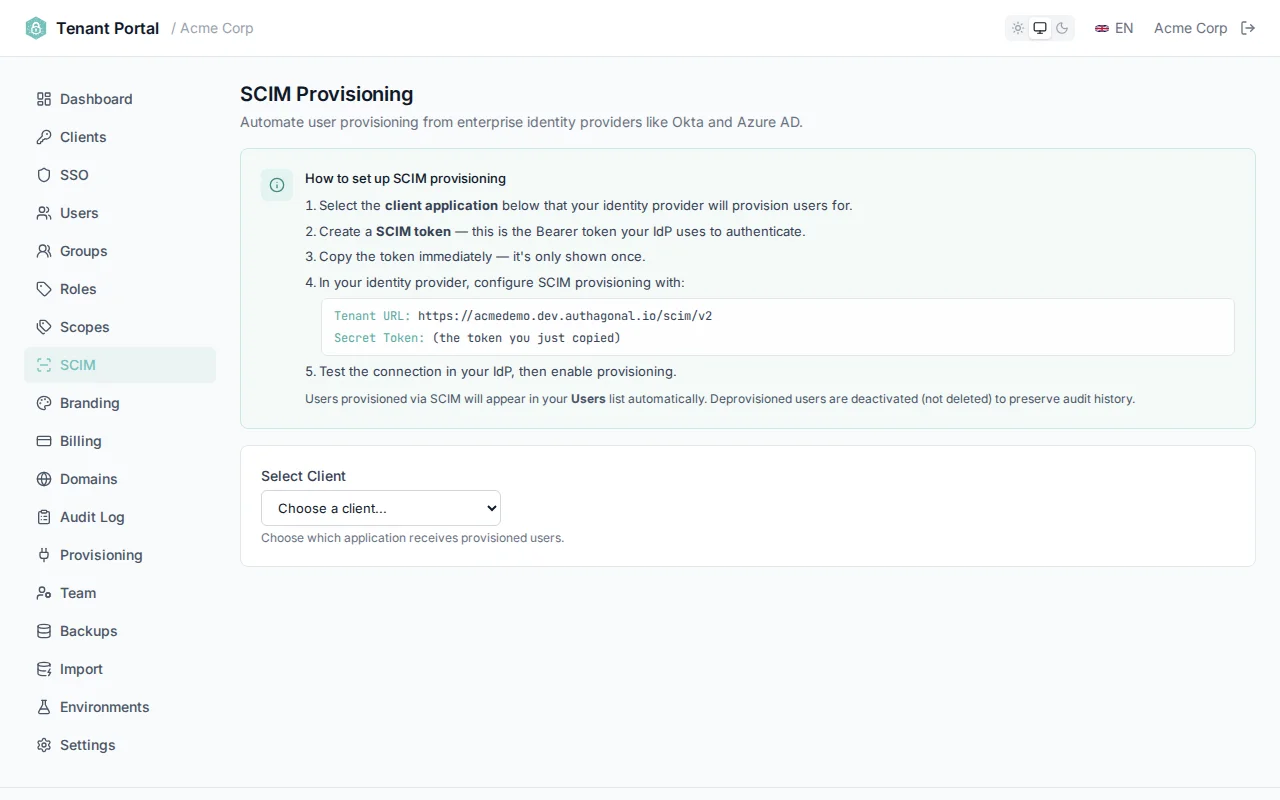
SCIM 2.0 (System for Cross-domain Identity Management) enables automatic user and group provisioning from enterprise identity providers like Okta, Azure AD, OneLogin, and JumpCloud. When configured, user accounts and group memberships are automatically synced from the upstream IdP to your Authagonal tenant.
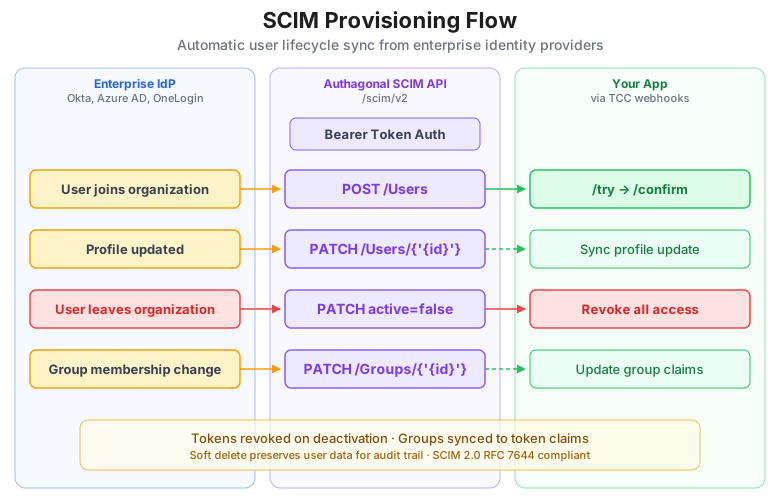
SCIM user lifecycle sync with downstream provisioning
Setup Steps
Follow these steps to enable SCIM provisioning for a client:
- Select the client application — Choose the OAuth client that the SCIM provisioning will be associated with.
- Generate a SCIM token — Provide a description and an expiry period in days, then generate the token.
- Copy the token immediately — The raw token value is displayed only once. Copy it before closing the dialog.
- Configure your IdP — In your identity provider's SCIM settings, enter the base URL and bearer token.
- Test user sync — Trigger a test sync from your IdP and verify that users appear in the Authagonal portal.
SCIM Base URL
Configure your identity provider with the following base URL:
https://{slug}.authagonal.io/scim/v2Replace {slug} with your tenant slug.
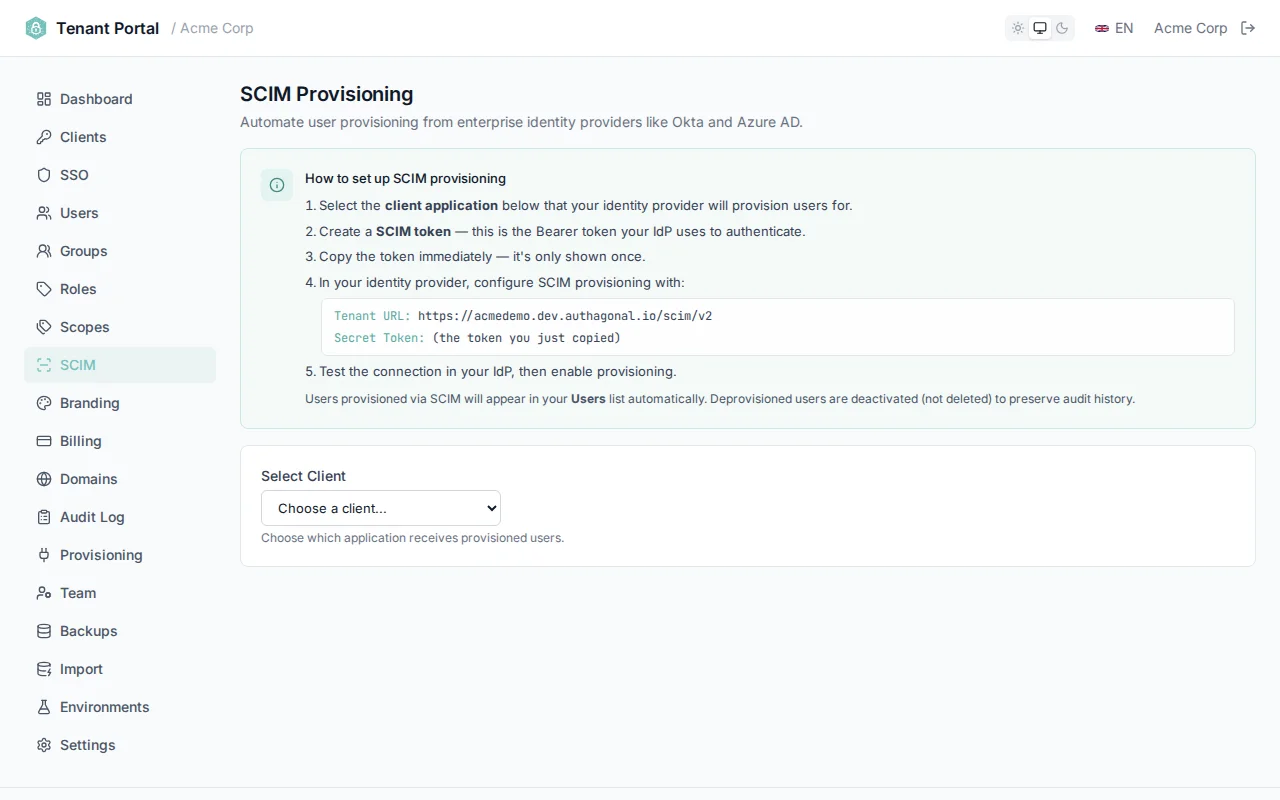
SCIM setup page with token generation
Token Management
SCIM tokens authenticate provisioning requests from your IdP. You can manage multiple tokens per client:
| Field | Description |
|---|---|
| Description | A label to identify the token (e.g. "Okta Production SCIM") |
| Expiry | Token lifetime in days (1 to 3650). Leave blank or set a long value for tokens that should not rotate frequently. |
| Status | Active tokens are in use. Revoked tokens display a Revoked badge and can no longer authenticate requests. |
To revoke a token, click the Revoke button next to it. Revoked tokens remain visible in the list for audit purposes but immediately stop accepting requests.
Token management with active and revoked token indicators
Copy Token Immediately
Testing Connectivity
Verify that your SCIM integration is working by querying the ServiceProviderConfig endpoint:
curl -H "Authorization: Bearer YOUR_TOKEN" \
  https://acme.authagonal.io/scim/v2/ServiceProviderConfig
A successful response returns a JSON document describing the supported SCIM features, including bulk operations, filtering, and change password capability.
OAuth Scopes
Scopes let clients request specific slices of a user's data or permissions. Authagonal supports both standard OIDC scopes and custom scopes you define for your APIs.
Built-in Scopes
| Scope | Description |
|---|---|
openid | Required for any OpenID Connect flow. Issues an ID token. |
profile | Returns standard profile claims (name, given_name, family_name). |
email | Returns the user's email address and verification status. |
offline_access | Issues a refresh token alongside the access token. |
Custom Scopes
Define your own scopes on the Scopes page. Each scope describes a permission or resource a client can request (for example, billing.read, orders.write).
| Field | Description |
|---|---|
name | The scope identifier sent in token requests (e.g. billing.read). |
displayName | Human-readable label shown on the consent screen. |
description | Longer explanation shown under the display name on consent. |
userClaims | Extra claims added to the access token when this scope is granted. |
showInDiscoveryDocument | If on, the scope appears in /.well-known/openid-configuration. |
emphasize | Highlights the scope on the consent screen as sensitive. |
required | Prevents the user from deselecting the scope during consent. |
Consent integration
Custom claims on tokens
Custom claims have two halves. The source is per-user data: each AuthUser has a customAttributes dictionary you can populate from the Portal (Users → user → Custom Attributes), via SCIM, or via a TCC provisioning hook. The release is per-scope: each scope's userClaims list names the keys it permits to leave the server.
When a client requests scopes, Authagonal walks the granted scopes, unions their userClaims lists, and emits only those keys from the user's customAttributes. Unknown keys are silently dropped — a client cannot read an attribute by guessing the name. Standard OIDC claims (sub, email, name, etc.) follow the spec and are not subject to the whitelist.
# 1. On the user (Portal → Users → {user} → Custom Attributes)
department = "engineering"
employee_id = "E-1042"
seat_tier = "enterprise"

# 2. On a custom scope (Portal → Scopes → projects.read)
name        = "projects.read"
userClaims  = ["department", "seat_tier"]   # <-- whitelist

# 3. Client requests scope=openid projects.read
# Decoded access token (relevant fields only):
{
  "sub": "u-9b…",
  "scope": "openid projects.read",
  "department": "engineering",
  "seat_tier":  "enterprise"
  // employee_id is NOT emitted — it's not in the whitelist for any granted scope.
}
Federation claims override per-session
department attribute mapped from a SAML assertion — flow through the same scope whitelist but win on key collision against the persisted customAttributes. They are emitted on this session's tokens (and survive refresh rotations) without being written back to the user record.Assigning Scopes to Clients
Add allowed scopes on the Clients → Scopes & Grants tab. A client can only request scopes it has been granted; unknown scopes are rejected with invalid_scope.
Branding
Customize the look and feel of your tenant's login pages. Branding settings let you match the authentication experience to your product's visual identity — from logos and colors to advanced CSS overrides.
Appearance
| Setting | Description |
|---|---|
appName | The application name displayed on the login page header and browser tab |
logoUrl | URL to your logo image. Displayed at the top of the login page. Recommended size: 200x60px or similar aspect ratio. |
primaryColor | The primary brand color used for buttons, links, and focus states. Set via a color picker or hex input. A live preview updates as you change the value. |
customCssUrl | URL to an external CSS file loaded after the default styles. Use this for advanced styling overrides. |
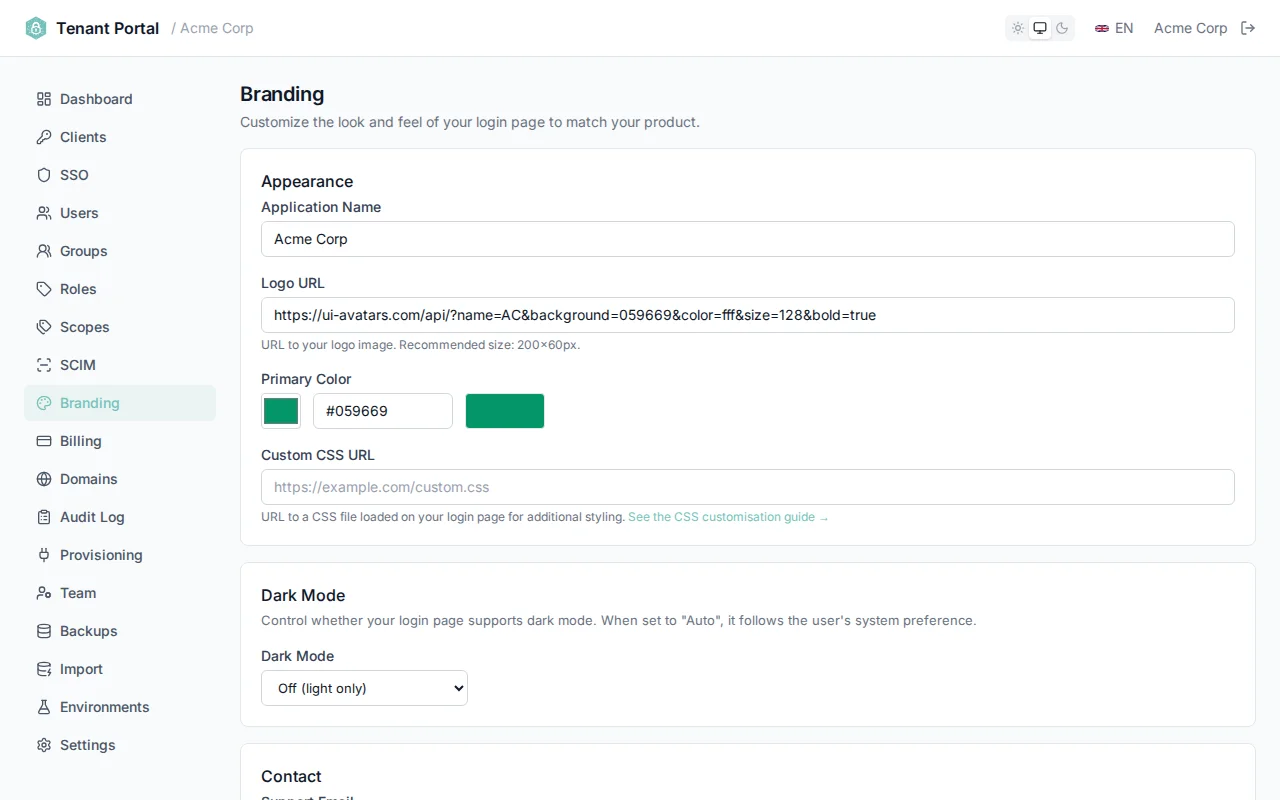
Appearance settings with live color preview
Contact Information
| Setting | Description |
|---|---|
supportEmail | A support email address displayed on login pages. Users see this when they need help with their account. |
Login Page Toggles
Control which elements appear on your tenant's login page:
| Toggle | Description | Default |
|---|---|---|
showForgotPassword | Display the "Forgot password?" link on the login form | On |
showRegistration | Display the "Sign up" link for self-service user registration | On |
showPoweredBy | Display the "Powered by Authagonal" badge at the bottom of the login page | On |
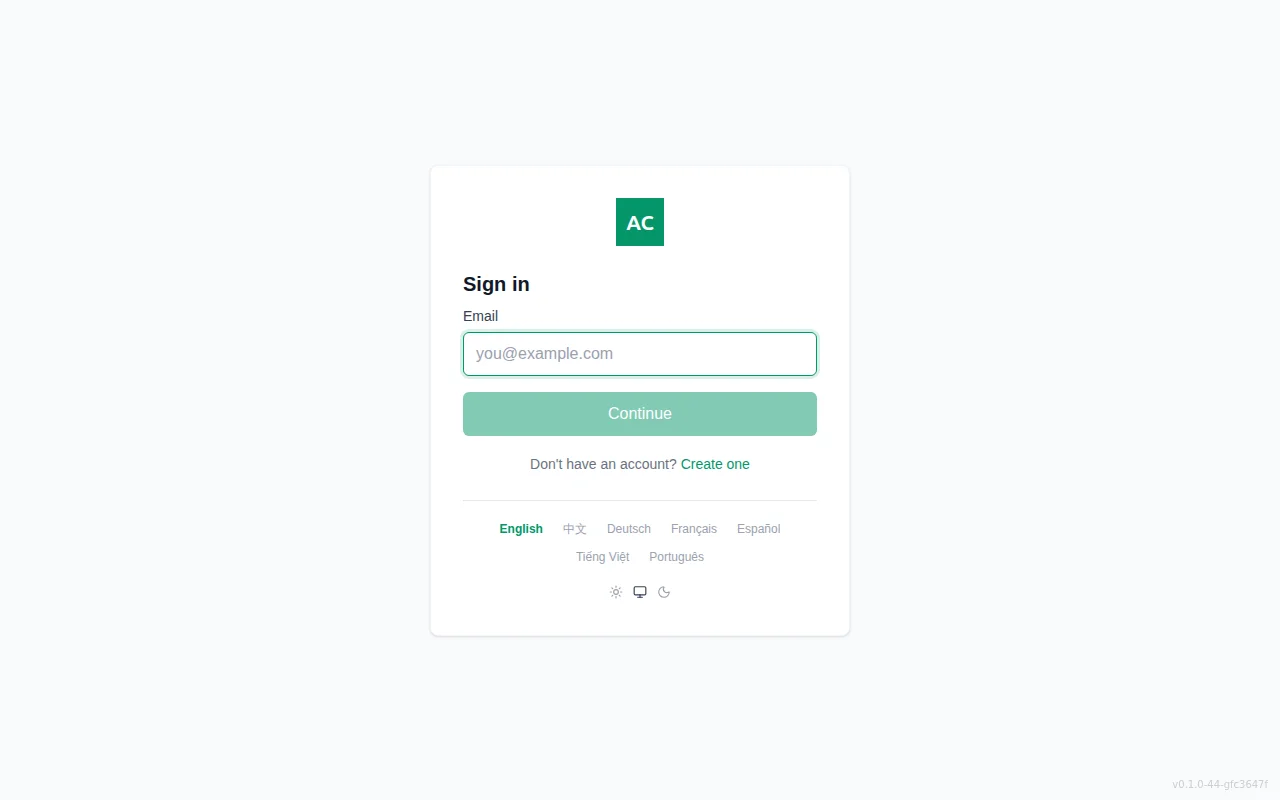
Example login page with custom branding applied
Custom CSS
For full control over the login page appearance, provide a CSS file URL in your branding settings. The file is loaded after the default styles, so your rules take precedence.
CSS Custom Properties
| Variable | Description | Default |
|---|---|---|
--auth-bg | Page background color | #f3f4f6 |
--auth-card-bg | Login card background | white |
--auth-heading | Heading text color | #111827 |
--auth-radius | Card border radius | 0.5rem |
--auth-font | Font family | inherit |
Dark Mode
The login app ships with light, dark, and system themes. Users pick from a toggle on the login page; the choice persists across sessions. When set to system, the SPA tracks prefers-color-scheme live.
Light values are declared at :root; dark overrides are scoped to .dark. Tenant branding set via customCssUrl always wins — so your colors persist regardless of the user's theme.
Element Selectors
data-auth attributes. These selectors are stable across updates — they won't break when we change internal class names.| Selector | Element |
|---|---|
[data-auth="page"] | Full-page background container |
[data-auth="header"] | Logo and app name area |
[data-auth="logo"] | Logo image |
[data-auth="app-name"] | App name heading (when no logo is set) |
[data-auth="content"] | Main content area (forms, messages) |
[data-auth="login-form"] | Login form element |
[data-auth="email-field"] | Email input wrapper |
[data-auth="password-field"] | Password input wrapper |
[data-auth="submit-button"] | Sign-in button |
[data-auth="languages"] | Language selector bar |
Settings
Configure tenant-wide security policies, webhooks, and environment settings. These settings apply globally across all clients unless overridden at the client level.
Password Policy
Define the password complexity requirements for all users in your tenant:
| Setting | Range | Default |
|---|---|---|
minPasswordLength | 6 – 128 | 8 |
requireUppercase | On / Off | On |
requireLowercase | On / Off | On |
requireDigit | On / Off | On |
requireSpecialChar | On / Off | On |
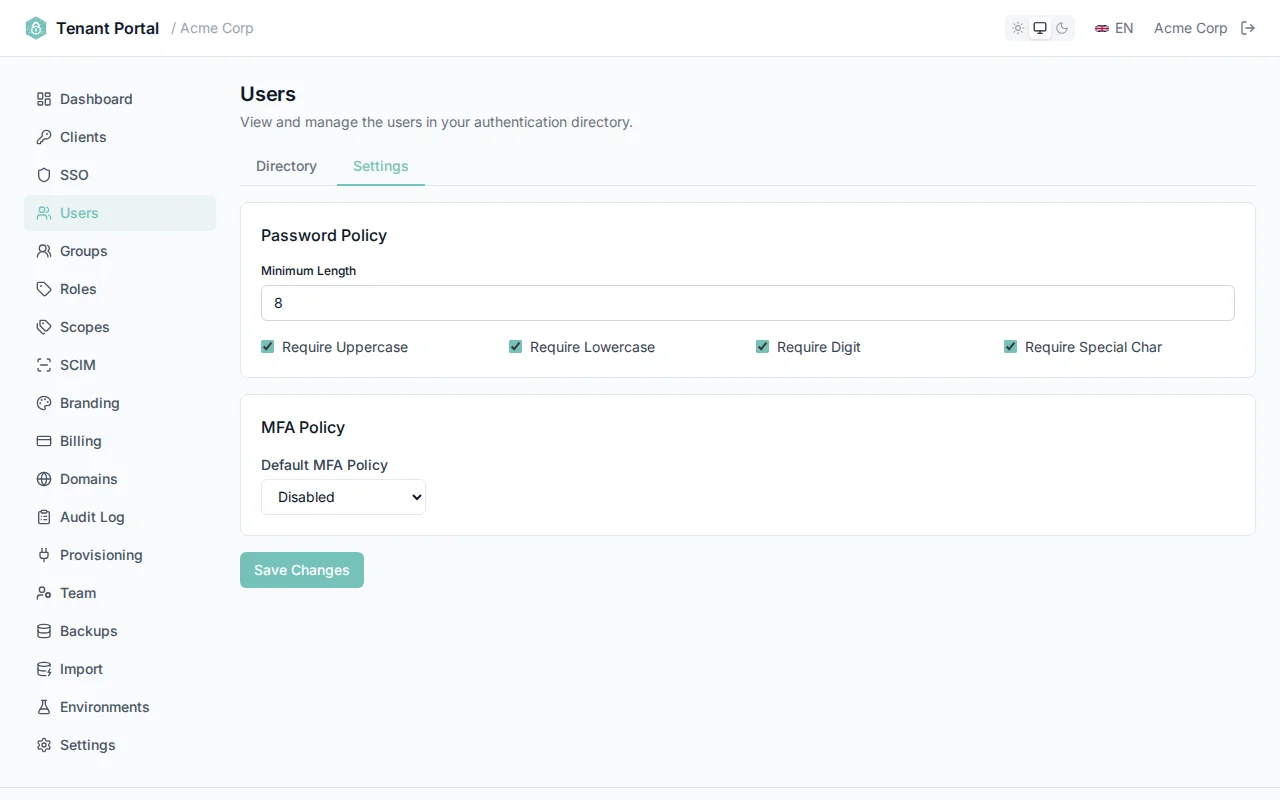
Password policy configuration
MFA Policy
The tenant-wide MFA policy sets the default multi-factor authentication behavior. Individual clients can override this setting.
| Policy | Behavior |
|---|---|
Disabled | MFA is not available. Users cannot enroll in MFA. |
Enabled | MFA is optional. Users can choose to enroll and will be prompted at login if enrolled. |
Required | MFA is mandatory. All users must enroll in MFA and complete a second factor at every login. |
Session & Lockout
Control session duration and account lockout behavior:
| Setting | Range | Default |
|---|---|---|
sessionLifetimeMinutes | 5 – 43,200 (30 days) | 60 |
maxFailedAttempts | 1 – 100 | 5 |
lockoutDurationMinutes | 1 – 1,440 (24 hours) | 10 |
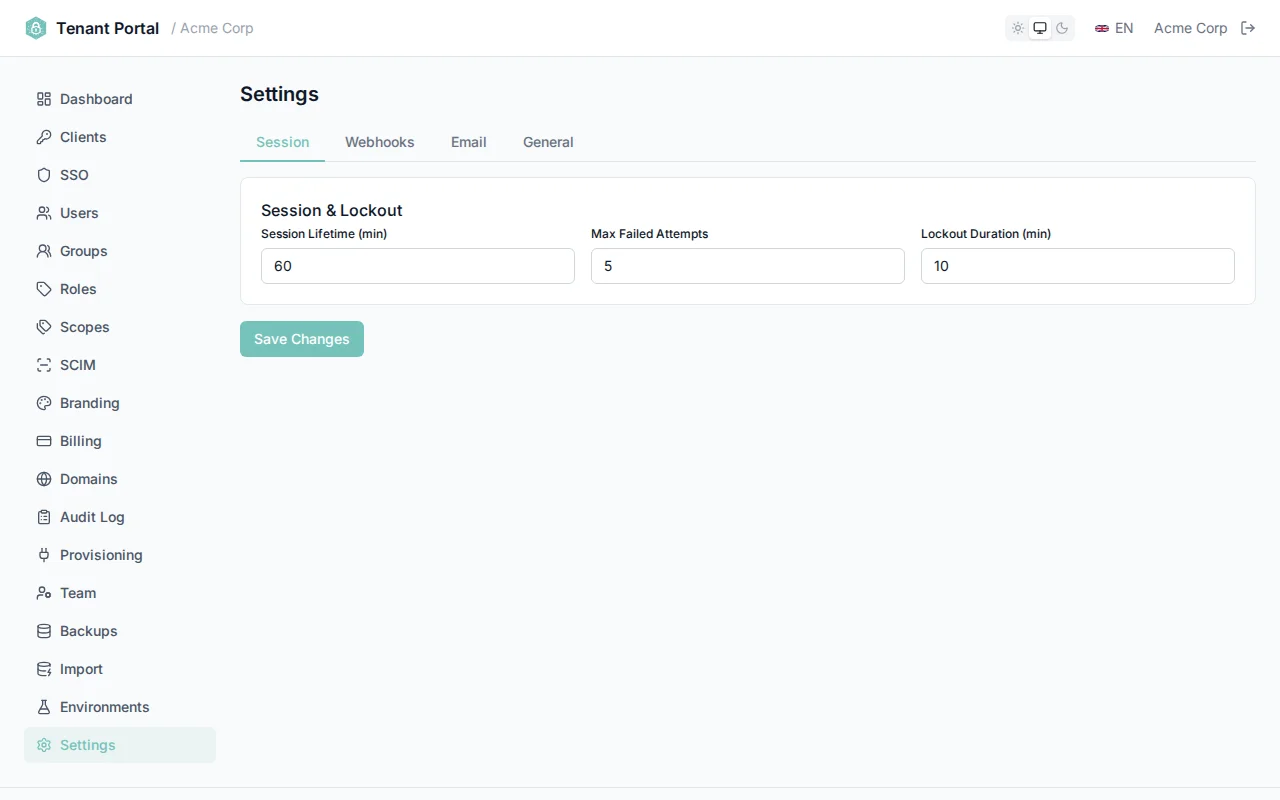
Session and lockout configuration
Webhooks
Webhooks let you react to authentication events in real time. Two events (onUserAuthenticated, onTokenIssued) are enforceable — by default they fire asynchronously and don't block the user, but you can opt in to enforcement per event so a non-2xx response or {"allow": false} body rejects the action. The remaining events are notifications — always fire-and-forget, never block.
| Event | Type | Description |
|---|---|---|
onUserAuthenticated | Enforceable | Fired after a successful login. Defaults to fire-and-forget so login latency is unaffected. Toggle <code>webhookEnforceUserAuthenticated</code> to make it blocking — a non-2xx response or <code>{"allow": false}</code> body then rejects the login. |
onTokenIssued | Enforceable | Fired before tokens are minted (authorization_code, refresh_token, client_credentials). Defaults to fire-and-forget. Toggle <code>webhookEnforceTokenIssued</code> to make it blocking — a non-2xx response or <code>{"allow": false}</code> body then prevents token issuance. |
onUserCreated | Notification | Fire-and-forget notification when a new user registers or is provisioned via SCIM. |
onUserUpdated | Notification | Fire-and-forget notification when a user record is updated (profile changes, role changes, SCIM updates). |
onUserDeleted | Notification | Fire-and-forget notification when a user is deleted, either via Portal/SCIM or by retention policy. |
onLoginFailed | Notification | Fire-and-forget notification when a login attempt fails due to bad credentials, lockout, or policy rejection. |
Additional webhook settings:
| Setting | Range | Default | Description |
|---|---|---|---|
webhookTimeoutSeconds | 1 – 30 | 5 | Maximum time to wait for an enforcement webhook response before timing out |
webhookFailOpen | On / Off | On | When enabled, if an enforcement webhook is unreachable or times out, the operation is allowed to proceed |
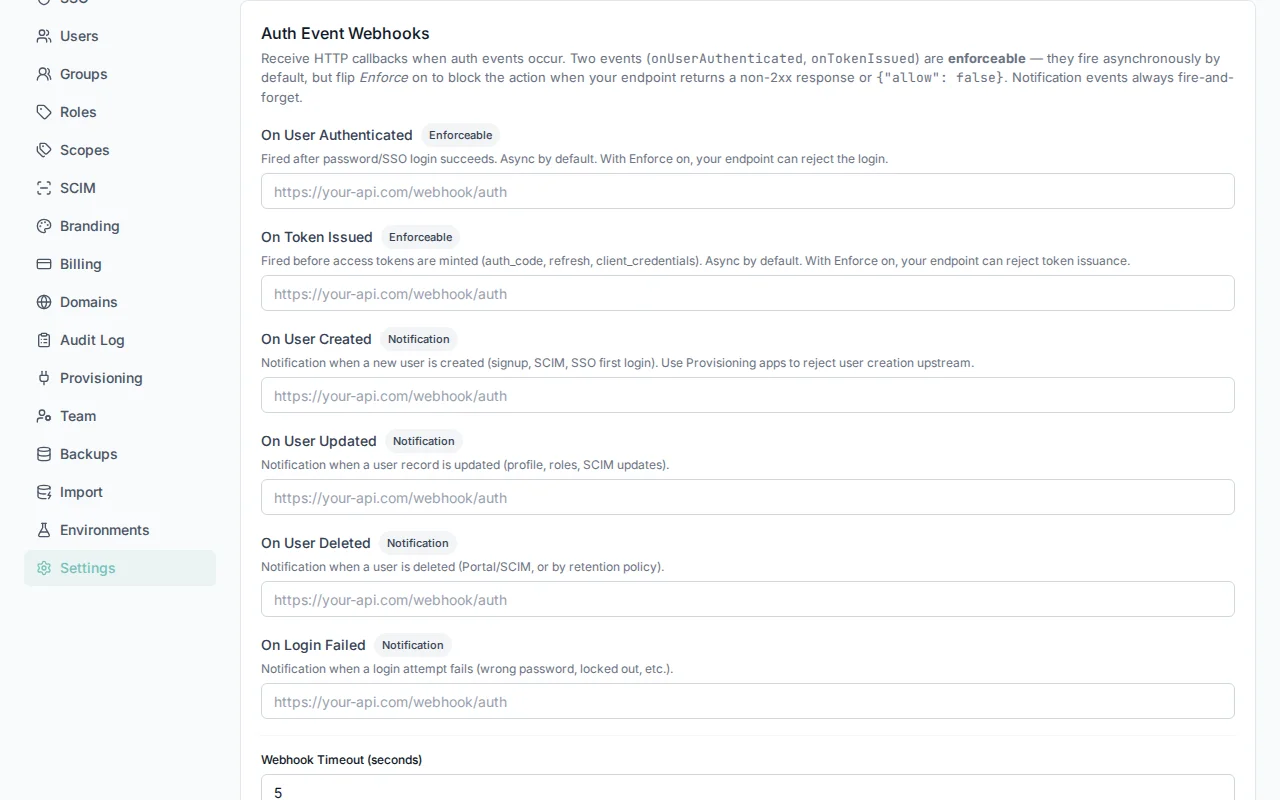
Webhook event configuration
Enforcement Webhook Availability
webhookFailOpen is disabled, no users will be able to log in. Use fail-open mode unless you have strict compliance requirements that mandate blocking on webhook failure.Verifying webhooks
Once any webhook URL is configured, Authagonal mints a per-tenant signing secret (a whsec_… value shown read-only under Settings → Webhooks). Every outbound delivery carries an X-Authagonal-Signature: t=<unix>,v1=<hex> header, where v1 is HMAC-SHA256(secret, "{t}.{body}") computed over the raw request body. Recompute it on your endpoint and constant-time-compare to confirm the request genuinely came from Authagonal and wasn't tampered with — and reject deliveries whose t is too old to block replays.
import crypto from 'node:crypto';

// rawBody MUST be the exact bytes Authagonal sent — verify before any JSON re-serialization.
function verifyAuthagonalWebhook(signatureHeader, rawBody, signingSecret) {
  const parts = Object.fromEntries(signatureHeader.split(',').map((p) => p.split('=')));
  const { t, v1 } = parts;

  // Replay protection: reject deliveries older than 5 minutes.
  if (Math.abs(Date.now() / 1000 - Number(t)) > 300) return false;

  const expected = crypto
    .createHmac('sha256', signingSecret)
    .update(`${t}.${rawBody}`)
    .digest('hex');

  return v1.length === expected.length &&
    crypto.timingSafeEqual(Buffer.from(v1), Buffer.from(expected));
}
Rotating the signing secret
Maintenance Window
Set a preferred maintenance window for disruptive operations such as certificate rotations and infrastructure updates. Choose a UTC hour (0–23) — the portal also displays the equivalent time in your local timezone for convenience.
Sandbox Environment
The sandbox environment is a full clone of your production tenant, available at a separate URL. Use it to test configuration changes, SSO integrations, and webhook endpoints without affecting live users.
| Action | Description |
|---|---|
| Enable Sandbox | Creates a sandbox copy of your production tenant. The sandbox URL is your tenant slug with a -sandbox suffix. |
| Refresh from Live | Syncs the sandbox environment with the current production configuration and user data. |
| Disable Sandbox | Permanently deletes the sandbox environment and all its data. |
The sandbox is accessible at {slug}-sandbox.authagonal.io.
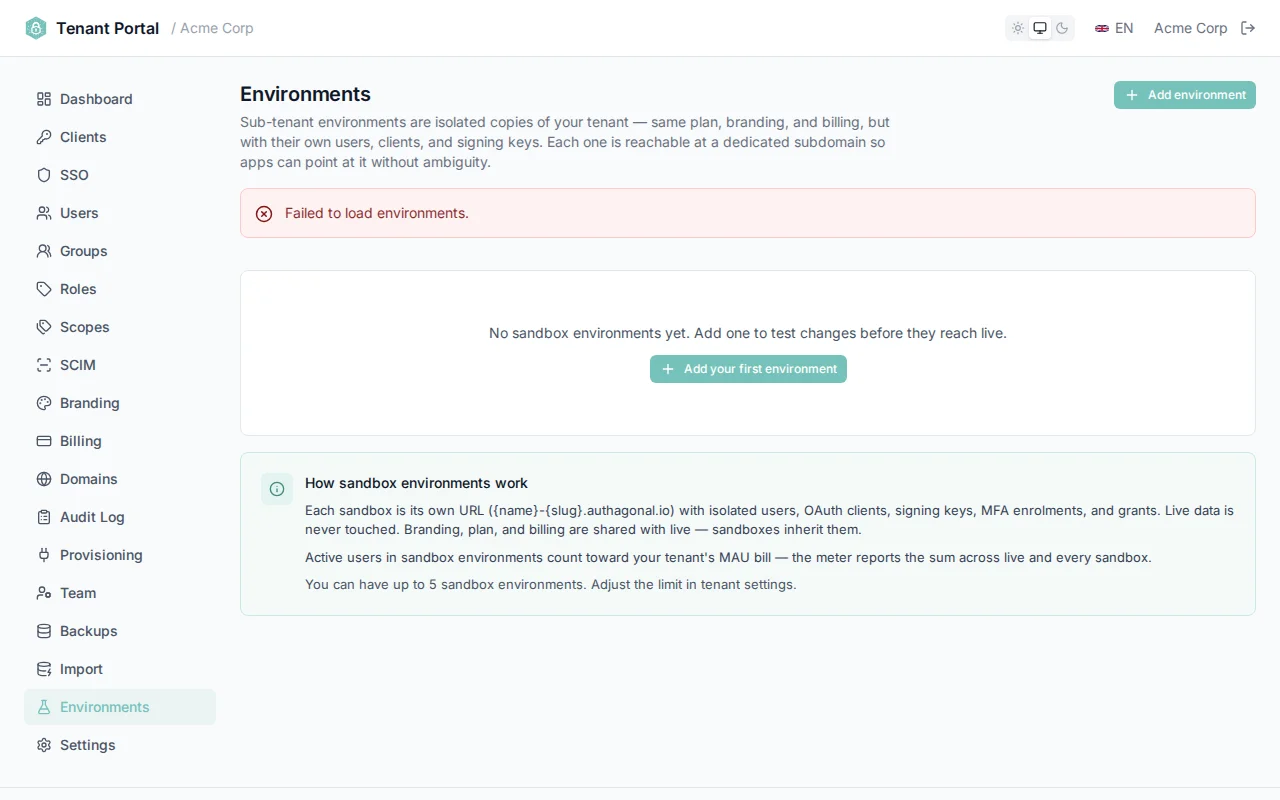
Sandbox environment controls
Billing
Manage your subscription and billing through the portal's Billing page. This page gives you an overview of your current plan and provides access to the Stripe billing portal for managing payment methods, invoices, and plan changes.
Subscription Information
The billing page displays your current subscription details at a glance. You'll see a status badge indicating your subscription state — active, trialing, past_due, canceled, or unpaid — along with your plan name, the current billing period (start and end dates), and whether your subscription is set to cancel at the end of the current period.
Manage Subscription
Click the Manage Subscription button to open the Stripe billing portal in a new window. From there you can update your payment methods, view and download invoices, change your plan, or cancel your subscription.
If no subscription exists yet, a Setup Billing call-to-action is shown instead, which guides you through selecting a plan and entering payment details.
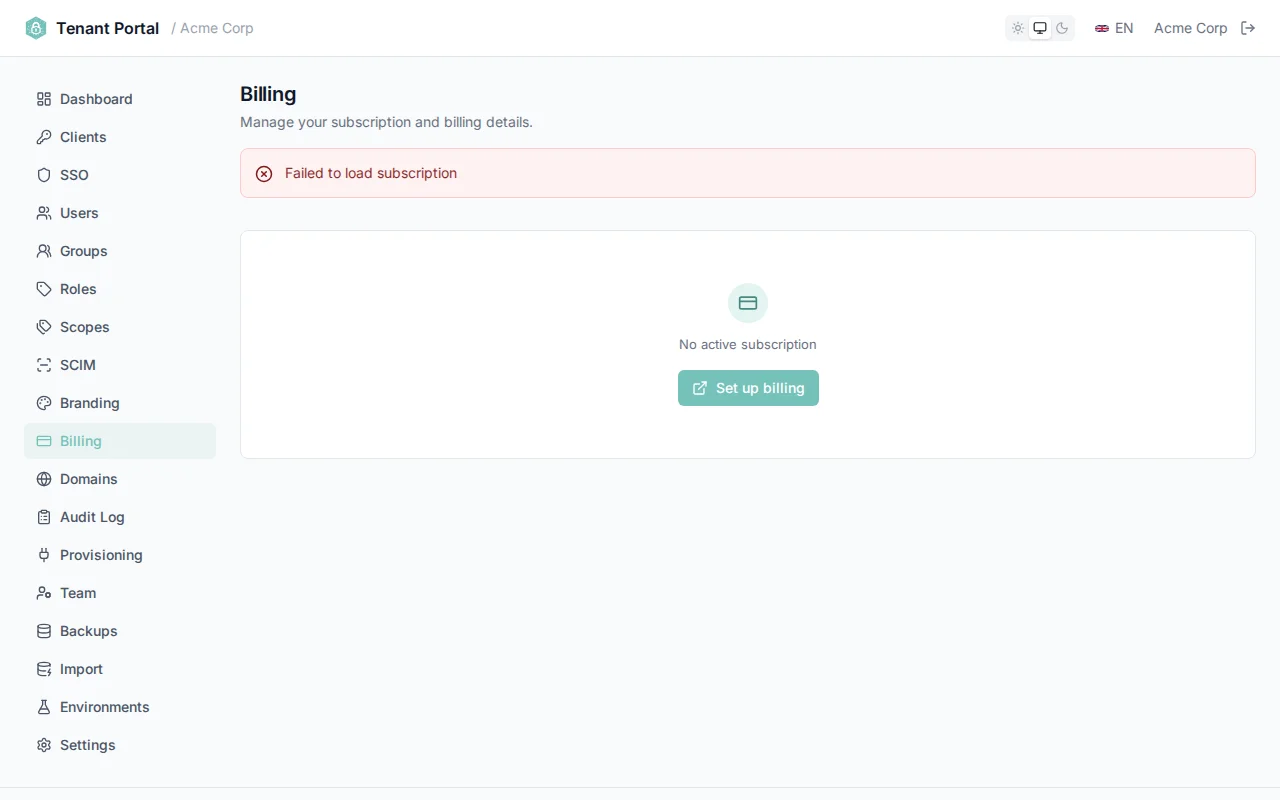
The billing page displays your current subscription details and provides access to Stripe
Payment Security
Custom Domains
Serve your authentication pages from your own domain (e.g., auth.yourdomain.com) instead of the default {slug}.authagonal.io. Custom domains give your users a seamless, branded authentication experience.
Adding a Domain
Enter the hostname you want to use in the add domain form (e.g., auth.yourdomain.com). Once added, the domain will appear in your domain list with a pending_verification status.
DNS Verification
Create a CNAME record pointing your domain to {slug}.authagonal.io. Once the DNS record is in place, click Verify to check DNS propagation.
auth.yourdomain.com. CNAME acme.authagonal.io.
DNS Propagation
TLS Certificates
Once your domain is verified, you need a TLS certificate so users can connect securely over HTTPS. Authagonal supports two options:
Automatic (cert-manager) — Authagonal provisions and renews TLS certificates automatically using cert-manager. This is the recommended option for most users. No additional configuration is required.
Bring Your Own (BYO) — Upload your own certificate and private key in PEM format. This option is useful if your organization requires certificates from a specific certificate authority. Certificate expiry is tracked so you can renew before it lapses.
Domain Status
Each domain displays a status badge indicating its current state: pending_verification (DNS not yet confirmed), verified (DNS confirmed, TLS pending), active (fully operational), or failed (configuration issue detected).
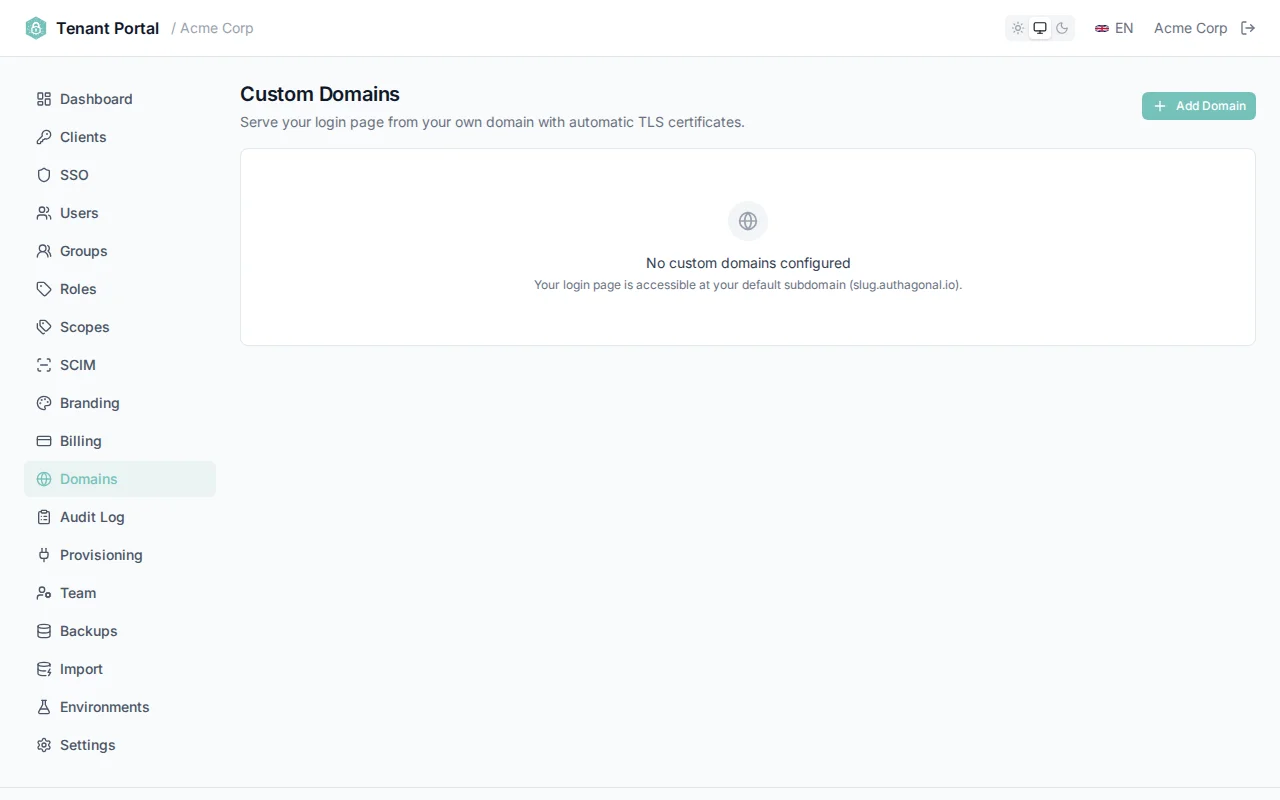
The domain list displays each custom domain and its current status
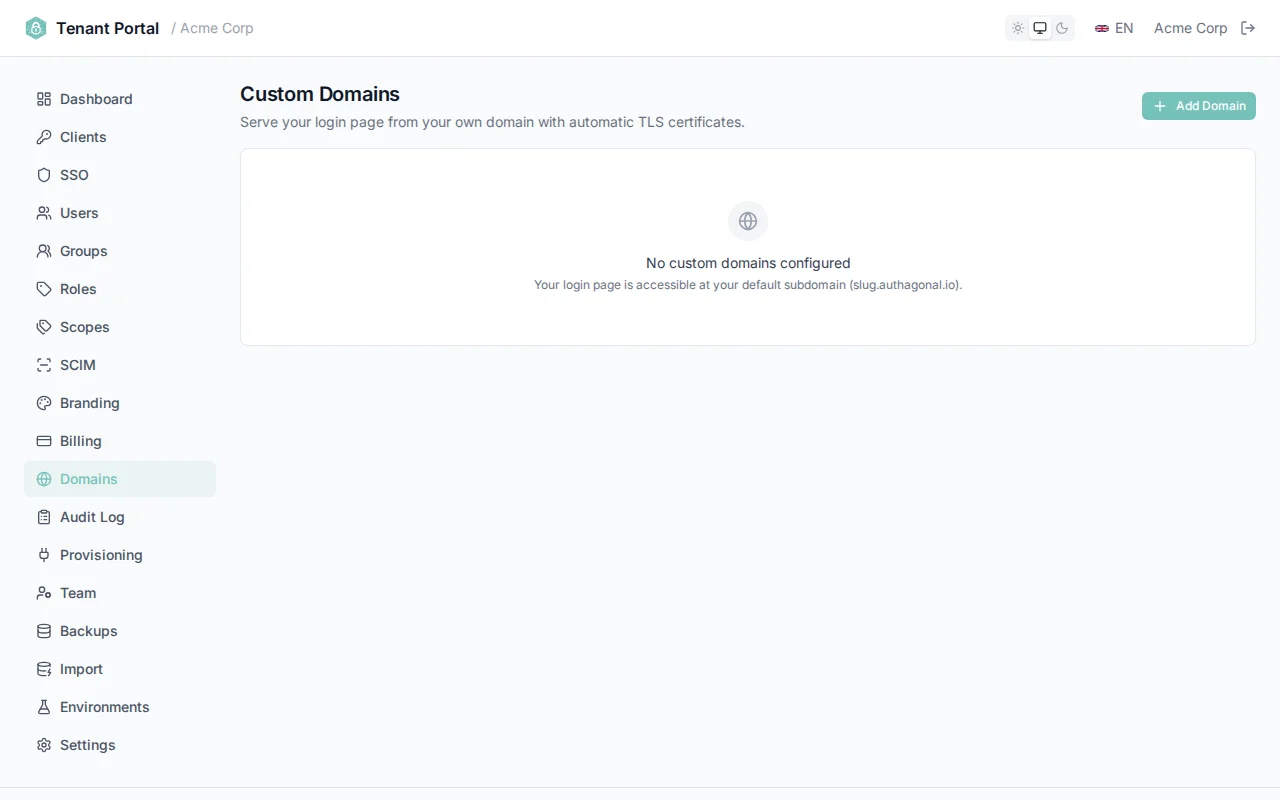
Upload your own TLS certificate and private key in PEM format
BYO Certificate Renewal
Email Configuration
Configure how your tenant sends transactional emails — verification, password reset, and MFA notifications. Choose between the default shared sender, a verified custom domain via Resend, or your own SMTP server.
Email Providers
| Provider | Description | Setup |
|---|---|---|
| Default | Emails sent from noreply@authagonal.io using our shared Resend infrastructure. | No configuration needed — works out of the box. |
| Resend Custom Domain | Emails sent from your own verified domain via Resend. | Register your domain, add DNS records, verify ownership. |
| Custom SMTP | Emails sent through your own SMTP server. | Provide SMTP host, port, credentials, and TLS settings. |
Sender Identity
Sender email and name are shared across all provider modes. Sender email is required; sender name falls back to the tenant name when empty.
| Field | Description |
|---|---|
senderEmail | The From address on outbound emails. Must be on a verified domain for Resend Custom Domain mode. |
senderName | Display name shown in the recipient's inbox. |
Resend Custom Domain
Verify your sending domain with Resend once, then use it as the From address for this tenant. DNS TXT records (SPF, DKIM) are provided by the Domains page; Resend validates them automatically.
Custom SMTP
Bring your own SMTP server — useful for internal relays, vendors not covered by Resend, or regulatory pinning.
| Field | Description |
|---|---|
host | SMTP server hostname (e.g. smtp.example.com). |
port | Connection port. 587 for STARTTLS, 465 for implicit TLS, 25 for unauthenticated internal relays. |
username | Auth username (optional — leave blank for unauthenticated relays). |
password | Auth password. Stored encrypted in the tenant settings secret. |
useTls | Require TLS. Leave on unless you are targeting a trusted internal relay. |
Custom Sending Domain
When using the Resend provider, you can register your own domain so emails come from your brand (e.g. noreply@acme.com) instead of @authagonal.io.
- Go to Settings → Email and select the Resend Custom Domain provider.
- Enter your domain name and click Register.
- Add the DNS records shown (DKIM, SPF, and return path) to your domain's DNS.
- Click Check Verification — once DNS propagates (usually 1–10 minutes), the domain status will change to verified.
DNS Propagation
Testing
Use the Send Test Email button in Settings → Email to verify your configuration. A test email will be sent to your admin email address using the currently saved settings.
Audit Log
The Audit Log provides a read-only record of all administrative actions performed on your tenant. Every change made through the portal or API is captured with full context, giving you a complete trail for compliance and troubleshooting.
Log Columns
| Column | Description |
|---|---|
| Timestamp | The date and time the action occurred |
| Actor | The email address of the admin who performed the action, or "system" for automated actions |
| Action | The type of action performed (e.g., Client Created, Settings Updated) |
| Entity | The target of the action in type:id format (e.g., client:my-app) |
| Detail | Additional context about the change |
Tracked Actions
The following administrative actions are recorded in the audit log:
| Category | Actions |
|---|---|
| Clients | Client Created, Client Updated, Client Deleted |
| SSO Connections | SAML Connection Created, SAML Connection Deleted, OIDC Connection Created, OIDC Connection Deleted |
| Users | User Created, User Updated |
| Settings | Settings Updated, Branding Updated |
| Domains | Domain Added, Domain Verified, Domain Deleted |
| SCIM | SCIM Token Created, SCIM Token Revoked |
| Roles | Role Created, Role Updated, Role Deleted |
| Groups | Group Created, Group Deleted |
| Team | Team Member Invited, Team Member Removed |
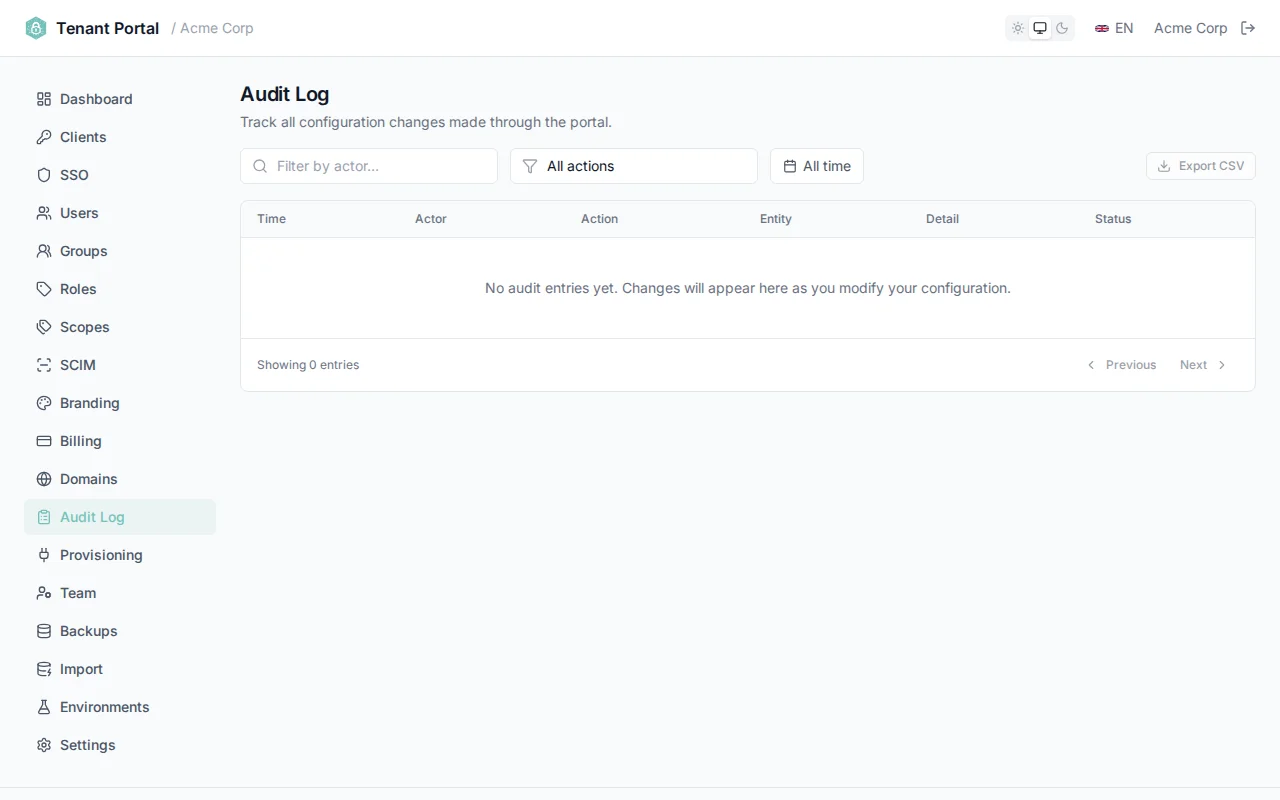
The audit log provides a complete record of all administrative actions
Retention
Backups
Authagonal automatically backs up your tenant data on an hourly schedule. Backups include all users, groups, roles, clients, SSO connections, SCIM tokens, branding, and settings. You can view backup history and download the latest complete backup from the Backups page.
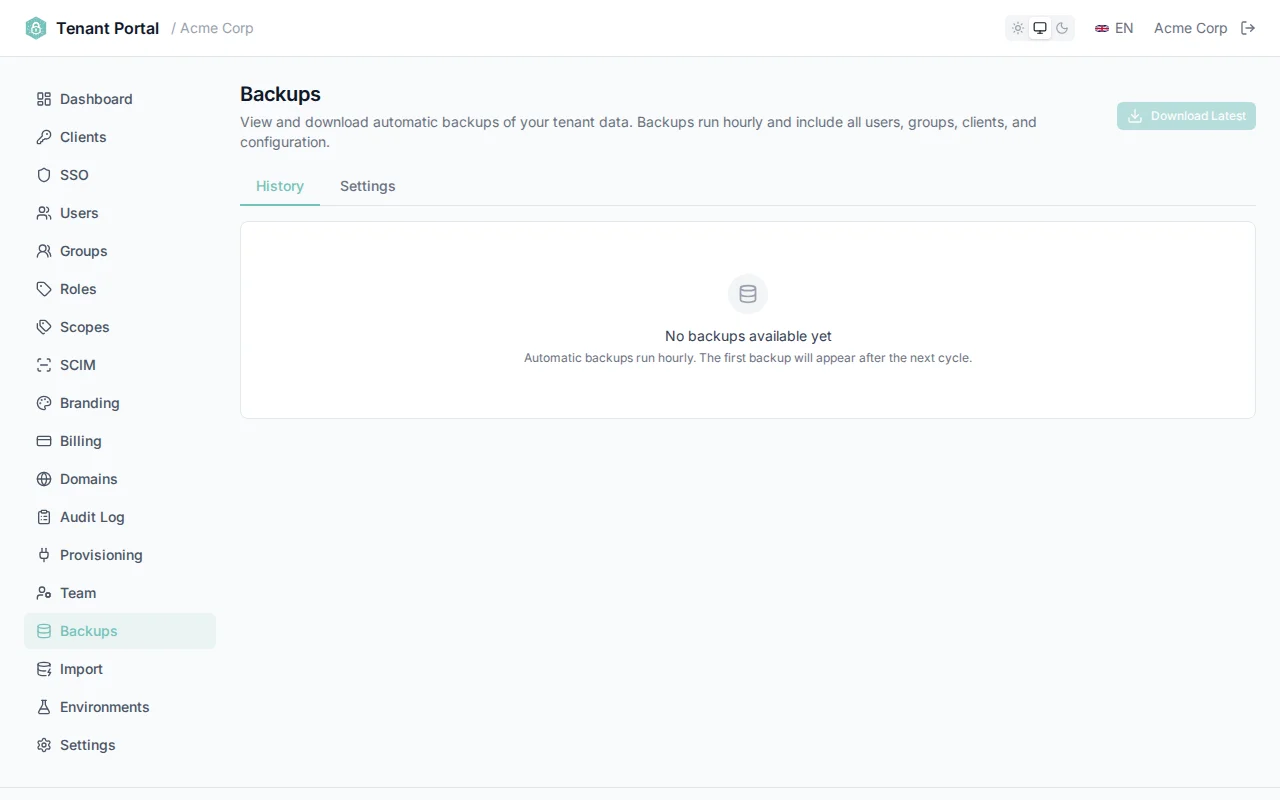
How Backups Work
- A full backup runs once daily, capturing every table in your tenant's storage shard.
- Incremental backups run hourly, capturing only rows that changed since the last backup.
- Backups are stored in Azure Blob Storage with the same managed identity used by your tenant.
- Deleted records are tracked via tombstones and included in backups for audit completeness.
Downloading Backups
Click Download Latest to get a ZIP file containing the most recent full backup merged with all subsequent incremental backups. Each table is exported as a JSONL file (one JSON object per line).
Backup Format
Provisioning Apps
Provisioning apps receive real-time webhook notifications when users are created or authenticated in your tenant. This enables downstream systems to automatically set up accounts, assign licenses, or sync user data without manual intervention.
How It Works
When a user event occurs (creation or authentication), Authagonal calls your provisioning app's callback URL using the TCC (Try/Confirm/Cancel) pattern. This three-phase approach ensures reliable provisioning across multiple downstream systems:
| Phase | Endpoint | Purpose |
|---|---|---|
| /try | POST {callbackUrl}/try | Checks if the app can handle the user. Return 200 to accept or 4xx to reject. |
| /confirm | POST {callbackUrl}/confirm | Commits the operation after all apps have accepted the /try phase. |
| /cancel | POST {callbackUrl}/cancel | Rolls back the operation if another app fails during the /try phase. |
Webhook Payload
Each webhook request includes a JSON payload with the following fields:
| Field | Type | Description |
|---|---|---|
| event | string | The event type (e.g., user.created, user.authenticated) |
| userId | string | The unique identifier of the user |
| string | The user's email address | |
| name | string | The user's display name |
| tenantId | string | Your tenant identifier |
| timestamp | string | ISO 8601 timestamp of the event |
Adding a Provisioning App
To add a provisioning app, provide a name, a callback URL, and an optional API key. The API key is sent as a Bearer token in the Authorization header of each webhook request, allowing your app to authenticate requests from Authagonal.
Testing
Click Test next to any provisioning app to send a test request to your callback URL. The test results display the HTTP status code and response body, helping you verify that your app is receiving and processing webhooks correctly.
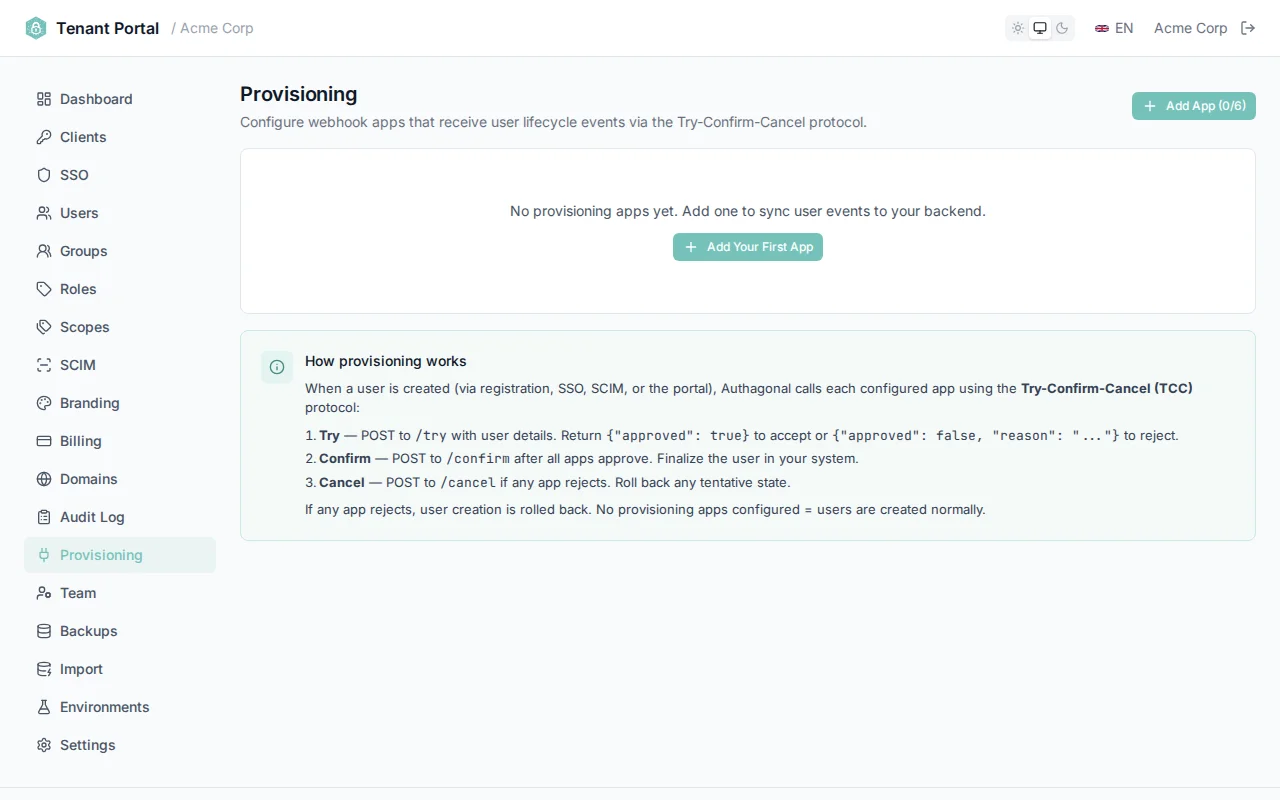
Test provisioning apps to verify webhook delivery and response handling
Plan Limits
The maximum number of provisioning apps is configurable per tenant, with a default limit of 6. This limit can be adjusted by an admin if your workflow requires additional provisioning targets.
API Key Authentication
Team
The Team page manages portal administrators — the people who can access and configure your tenant through the management portal. All team members have full administrative access to every aspect of your tenant configuration.
Admin List
The admin list displays each team member's name, email address, and the date they were added. A "You" indicator is shown next to the current user's row so you can easily identify your own account.
Inviting Admins
To invite a new team member, provide their email address, name, and a temporary password (minimum 8 characters). The invited user signs in with the temporary password and should change it on first login.
Invite Fields
Admin invitations create a fully provisioned user — no email round-trip required.
| Field | Description |
|---|---|
email | Email address of the new admin. Must be unique in the tenant. |
name | Display name shown in the admin list. |
tempPassword | Temporary password the invitee uses on first login. They'll be prompted to change it. Leave blank to auto-generate and send via email. |
Removing Admins
Click Remove next to any team member to revoke their access. A confirmation dialog is shown before the removal is finalized. You cannot remove yourself — there must always be at least one admin on the team.
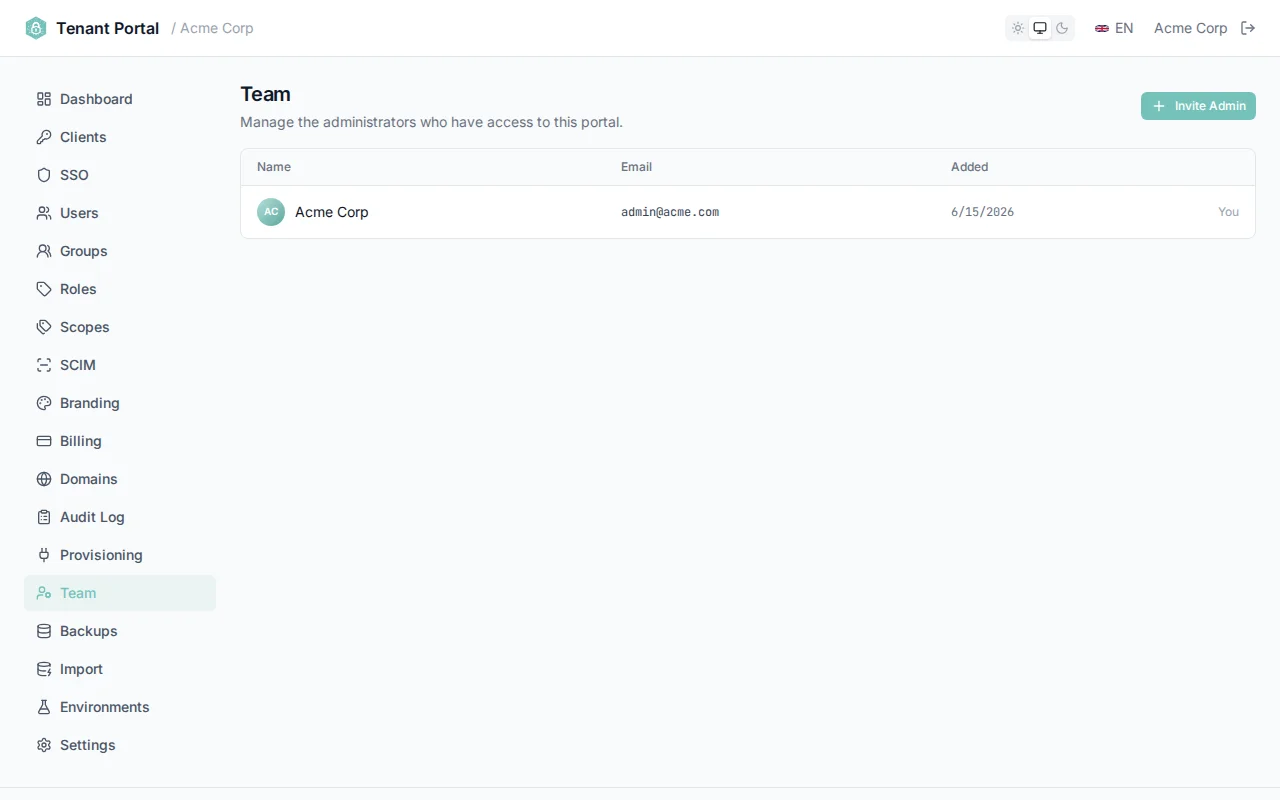
Manage portal administrators from the Team page
No Owner Role
Import & migrate
Migrate an existing identity system into your Authagonal tenant. Two sources are supported — Duende IdentityServer (a SQL Server database) and Auth0 (the Management API). Each runs a read-only preview so you can review exactly what will be copied before committing.
Import from Duende IdentityServer
Migrate clients, scopes, users, and roles from an existing Duende IdentityServer SQL Server database into your Authagonal tenant. The import runs in two phases — preview and commit — so you can review what will be copied before any changes are made.
What Gets Imported
The importer reads from Duende's ConfigurationDb and ASP.NET Identity tables and writes mapped rows into your tenant. Short-lived artifacts like persisted grants, device codes, and signing keys are skipped.
| Entity | Source Tables | Notes |
|---|---|---|
| Clients | Clients, ClientSecrets, ClientGrantTypes, ClientScopes, ClientRedirectUris | Disabled clients are imported disabled. Expired secrets are skipped. |
| Scopes | ApiScopes, ApiResources, IdentityResources | User-claim mappings are preserved where recognised. |
| Users | AspNetUsers, AspNetUserClaims | Password hashes (ASP.NET Identity V3) copy verbatim and rehash on first login. |
| Roles | AspNetRoles, AspNetUserRoles | Role assignments are preserved. |
| External Logins | AspNetUserLogins | Stored for reference; reconnect upstream IdPs via SSO after import. |
Preview Before Commit
Paste your Duende ConfigurationDb / IdentityDb connection string and click Run preview. The preview opens a read-only connection and counts every row that would be imported — no writes occur.
- Entity counts for clients, scopes, users, roles, and role assignments.
- Owner collisions — tenant admins whose existing <code>userId</code> differs from the incoming Duende <code>sub</code>.
- Warnings for unknown tables and unmapped columns so you know what will be dropped.

Preview panel with counts, collisions, and warnings
Password Hashes
Duende stores passwords using ASP.NET Identity V3 (PBKDF2). Authagonal's PasswordHasher verifies that format directly and rehashes to the native format on the first successful sign-in — users keep their existing passwords without a reset flow.
Owner UserId Rotation
If a tenant admin's email matches a user in the Duende database, the admin's Authagonal userId is rotated to match the Duende sub. This keeps tokens and audit entries consistent after cutover. The preview lists every collision before you commit.
You may be signed out
Running the Import
Click Start import after reviewing the preview. The commit phase writes clients, scopes, users, roles, and external-login references into your tenant stores. Duplicate clientId, scope name, email, and role name rows are skipped — the importer is safe to re-run.
What's Not Imported
- Persisted grants, device codes, server-side sessions — short-lived, regenerated automatically.
- Signing keys — Authagonal issues its own per-tenant keys.
- Custom columns and tables — anything outside Duende's standard schema is surfaced as a warning so you know the data was dropped.
- Disabled clients — imported in a disabled state; re-enable them from the Clients page when ready.
Not available in sandbox
Import from Auth0
Connect Authagonal to your Auth0 tenant’s Management API and bring your applications, APIs, roles, users, and enterprise connections across. Imported user and application IDs are preserved, so existing sub and client_id references keep resolving after cutover.
What you’ll need
Create a Machine-to-Machine application in Auth0 authorized for the Management API, granted these read scopes: read:users, read:clients, read:resource_servers, read:roles, read:connections, read:client_grants. Paste its domain, client ID, and client secret into the import form — they’re used only for the import.
What Gets Imported
| Entity | Source Tables | Notes |
|---|---|---|
| Applications | clients, client-grants | Public vs confidential is detected automatically. Client secrets are re-hashed so they keep working. |
| APIs & scopes | resource-servers | Audiences and scopes are assigned to each client from its grants. |
| Roles | roles + assignments | Per-user role assignments are preserved. |
| Users | users + identities | Profiles and metadata transfer; social/enterprise identities become linked logins. |
| Connections | connections (OIDC) | Enterprise OIDC connections become federated providers. SAML, social, and database connections are skipped with a warning. |
Passwords
Auth0’s Management API never returns password hashes. If you have Auth0’s support-assisted bulk password export (NDJSON), provide it — bcrypt hashes import verbatim and your users keep their passwords with no reset. That file also carries your full user set, lifting Auth0’s 1,000-user API listing limit. Without it, users import as profiles and set a new password on first sign-in.
Same preview, rotation, and limits
API Reference
Each tenant exposes a standards-compliant OIDC server at https://{slug}.authagonal.io. All endpoints follow the OAuth 2.0 and OpenID Connect specifications. This reference covers every endpoint your application may need to interact with.
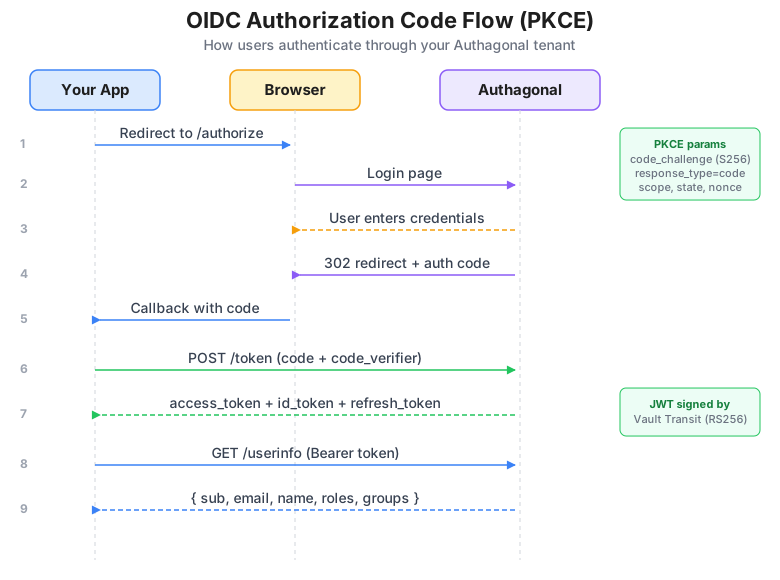
Authorization Code Flow with PKCE
OIDC Discovery & JWKS
The discovery document lets OIDC client libraries automatically configure themselves. No authentication is required for either endpoint.
GET /.well-known/openid-configuration
Returns the OpenID Provider Configuration document. The response includes all metadata your client needs to interact with this tenant.
| Field | Description |
|---|---|
| issuer | The tenant issuer URL |
| authorization_endpoint | URL for authorization requests |
| token_endpoint | URL for token exchange |
| userinfo_endpoint | URL for fetching user claims |
| jwks_uri | URL for the JSON Web Key Set |
| revocation_endpoint | URL for token revocation |
| introspection_endpoint | URL for token introspection |
| end_session_endpoint | URL for logout / end-session |
| device_authorization_endpoint | URL for device authorization requests |
| pushed_authorization_request_endpoint | URL of the Pushed Authorization Request endpoint (RFC 9126). |
| require_pushed_authorization_requests | Whether the tenant globally requires PAR. Even when this is <code>false</code>, individual clients can still set <code>RequirePushedAuthorizationRequests = true</code>. |
| scopes_supported | List of supported scopes |
| response_types_supported | Supported response types |
| grant_types_supported | Supported grant types |
| code_challenge_methods_supported | Supported PKCE methods (S256) |
| backchannel_logout_supported | Whether back-channel logout is supported |
GET /.well-known/openid-configuration/jwks
Returns the JSON Web Key Set used for verifying token signatures. The response contains a keys array with RSA public keys, each including kty, use, kid, alg, n, and e fields.
curl https://acme.authagonal.io/.well-known/openid-configuration
Authorization Endpoint
GET /connect/authorize
Initiates an authorization code flow. The user must have an active session or they will be redirected to the login page. On success, the user is redirected back to your application with an authorization code.
| Parameter | Required | Description |
|---|---|---|
response_type | Yes | Must be "code" |
client_id | Yes | Your registered client identifier |
redirect_uri | Yes | Must exactly match a registered redirect URI |
scope | Yes | Space-separated list of scopes (e.g. "openid profile email") |
state | Recommended | Opaque value for CSRF protection, returned unchanged in the redirect |
code_challenge | Required if PKCE | Base64url-encoded SHA-256 hash of the code_verifier |
code_challenge_method | Required if PKCE | Must be "S256" |
nonce | Optional | Value bound to the ID token for replay protection |
login_hint | Optional | Pre-fill the email field on the login page |
Success response: 302 redirect to redirect_uri with code and state query parameters.
Error response: 302 redirect with error, error_description, and state query parameters.
PKCE Required
code_verifier (a random string of 43 or more characters), hash it with SHA-256, and base64url-encode the result to create the code_challenge.Pushed Authorization Requests (PAR)
RFC 9126. Instead of putting every authorize parameter on the URL, your client POSTs them to /connect/par with normal client authentication and gets back a short-lived opaque request_uri. The browser then visits /connect/authorize?client_id=...&request_uri=... — nothing else lands in browser history, server logs, or Referer headers, and the server has already integrity-checked the parameters under client auth.
POST /connect/par
Client authentication is the same as /connect/token: HTTP Basic with client_id/client_secret, or form-encoded credentials. Public clients post without a secret. The body carries the same parameters you would normally send to /connect/authorize; request_uri itself is rejected (chaining a PAR is forbidden by §2.1 of the spec). Returns 201 Created.
| Parameter | Required | Description |
|---|---|---|
client_id | Yes | Your client ID. Must match the authenticated client. |
client_secret | Confidential clients | Your client secret. Required for confidential clients. |
response_type | Yes | Must be "code" |
redirect_uri | Yes | Must exactly match a registered redirect URI |
scope | Yes | Space-separated list of scopes (e.g. "openid profile email") |
code_challenge | Required if PKCE | Base64url-encoded SHA-256 hash of the code_verifier |
code_challenge_method | Required if PKCE | Must be "S256" |
state | Recommended | Opaque value for CSRF protection, returned unchanged in the redirect |
nonce | Optional | Value bound to the ID token for replay protection |
Response
| Field | Description |
|---|---|
request_uri | Single-use opaque reference, e.g. <code>urn:ietf:params:oauth:request_uri:abc123…</code>. Pass it to <code>/connect/authorize</code> as <code>request_uri</code>. |
expires_in | Lifetime of the <code>request_uri</code> in seconds. Default is 90 — typical reference-IdP value. |
On the follow-up GET /connect/authorize?client_id=…&request_uri=…, all other parameters are pulled from the pushed payload and any extra query parameters are ignored. The client_id on the authorize call must match the client that pushed the request. Once consumed (or once expires_in elapses), the request_uri is removed from the store.
Forcing PAR per client
/connect/authorize calls from it. The recommended posture for high-risk clients combines RequirePushedAuthorizationRequests = true with PKCE — that removes the URL bar as an attack surface entirely.# 1. Push parameters (server returns request_uri + expires_in) curl -X POST https://acme.authagonal.io/connect/par \ -u "my-app:CLIENT_SECRET" \ -H "Content-Type: application/x-www-form-urlencoded" \ -d "response_type=code" \ -d "redirect_uri=https://app.example.com/callback" \ -d "scope=openid profile email" \ -d "state=$(openssl rand -hex 16)" \ -d "code_challenge=YOUR_CODE_CHALLENGE" \ -d "code_challenge_method=S256" # 2. Send the user to /authorize with only client_id + request_uri # https://acme.authagonal.io/connect/authorize?client_id=my-app&request_uri=urn:ietf:params:oauth:request_uri:abc123...
Token Endpoint
POST /connect/token
Exchanges credentials for tokens. Requests must use Content-Type: application/x-www-form-urlencoded. Client authentication can be provided via HTTP Basic auth (Authorization: Basic base64(client_id:client_secret)) or as form body parameters (client_id + client_secret).
Authorization Code Grant
| Parameter | Required | Description |
|---|---|---|
grant_type | Yes | "authorization_code" |
code | Yes | The authorization code from the redirect |
redirect_uri | Yes | Must match the URI used in the authorization request |
code_verifier | Required if PKCE | The original random string used to generate the code_challenge |
client_id | Yes | Your client identifier (if not using Basic auth) |
client_secret | Confidential clients | Your client secret (if not using Basic auth) |
Refresh Token Grant
| Parameter | Required | Description |
|---|---|---|
grant_type | Yes | "refresh_token" |
refresh_token | Yes | The refresh token to exchange |
client_id | Yes | Your client identifier |
client_secret | Confidential clients | Your client secret |
Client Credentials Grant
| Parameter | Required | Description |
|---|---|---|
grant_type | Yes | "client_credentials" |
client_id | Yes | Your client identifier |
client_secret | Yes | Your client secret |
scope | Optional | Space-separated scopes to request |
Device Code Grant
| Parameter | Required | Description |
|---|---|---|
grant_type | Yes | "urn:ietf:params:oauth:grant-type:device_code" |
device_code | Yes | The device code from the device authorization response |
client_id | Yes | Your client identifier |
client_secret | Confidential clients | Your client secret |
Token response:
| Field | Description |
|---|---|
access_token | The access token for API calls |
token_type | "Bearer" |
expires_in | Token lifetime in seconds |
id_token | OpenID Connect ID token (when openid scope is requested) |
refresh_token | Refresh token (when offline_access scope is granted) |
curl -X POST https://acme.authagonal.io/connect/token \
  -H "Content-Type: application/x-www-form-urlencoded" \
  -d "grant_type=authorization_code" \
  -d "code=AUTHORIZATION_CODE" \
  -d "redirect_uri=https://app.example.com/callback" \
  -d "client_id=my-app" \
  -d "code_verifier=YOUR_CODE_VERIFIER"
UserInfo Endpoint
GET /connect/userinfo
Returns claims about the authenticated user. Requires a valid access token with the openid scope.
| Field | Type | Description |
|---|---|---|
sub | string | Unique user identifier |
email | string | User email address |
email_verified | boolean | Whether the email has been verified |
given_name | string | First name |
family_name | string | Last name |
name | string | Full display name |
phone_number | string | Phone number (if provided) |
org_id | string | Organization identifier |
roles | string[] | Array of assigned roles |
groups | object[] | Array of group memberships, each with id and name |
curl https://acme.authagonal.io/connect/userinfo \
  -H "Authorization: Bearer ACCESS_TOKEN"
Token Introspection (RFC 7662)
POST /connect/introspect
Validates a token and returns its metadata. Requires client credentials (Basic auth or form body parameters).
| Parameter | Required | Description |
|---|---|---|
token | Yes | The token to introspect |
token_type_hint | Optional | Hint about the token type (e.g. "refresh_token") |
Active token response:
| Field | Description |
|---|---|
active | true |
sub | Subject (user ID) |
client_id | Client that the token was issued to |
scope | Space-separated scopes granted |
iss | Issuer |
exp | Expiration time (Unix timestamp) |
iat | Issued-at time (Unix timestamp) |
aud | Audience |
token_type | Token type (e.g. "Bearer") |
Inactive token response: { "active": false }
Always 200 OK
active: false.curl -X POST https://acme.authagonal.io/connect/introspect \ -u "my-app:CLIENT_SECRET" \ -H "Content-Type: application/x-www-form-urlencoded" \ -d "token=ACCESS_OR_REFRESH_TOKEN"
Token Revocation (RFC 7009)
POST /connect/revocation
Revokes a previously issued token. Requires client credentials.
| Parameter | Required | Description |
|---|---|---|
token | Yes | The token to revoke |
token_type_hint | Optional | Hint about the token type (e.g. "refresh_token") |
The endpoint always returns 200 OK, even for invalid or already-revoked tokens, per the RFC 7009 specification.
Refresh Tokens Only
Device Authorization (RFC 8628)
POST /connect/deviceauthorization
Initiates the device authorization flow for input-constrained devices (CLIs, smart TVs, IoT devices). The device displays a code to the user, who then approves the request on a separate device with a browser.
| Parameter | Required | Description |
|---|---|---|
client_id | Yes | Your client identifier |
client_secret | Confidential clients | Your client secret |
scope | Optional | Space-separated scopes (defaults to "openid") |
Response:
| Field | Description |
|---|---|
device_code | Device verification code (used for polling) |
user_code | User-facing code in XXXX-XXXX format |
verification_uri | URL the user visits to enter the code |
verification_uri_complete | URL with the user_code pre-filled |
expires_in | 600 (seconds — the code is valid for 10 minutes) |
interval | 5 (seconds — minimum polling interval) |
Approval flow: The user visits the verification_uri, enters the user_code, and approves the request. Meanwhile, the device polls the token endpoint with the device_code.
Polling error codes:
| Error | Meaning |
|---|---|
authorization_pending | User has not yet approved — keep polling |
expired_token | The device code has expired — restart the flow |
access_denied | The user denied the authorization request |
curl -X POST https://acme.authagonal.io/connect/deviceauthorization \
  -H "Content-Type: application/x-www-form-urlencoded" \
  -d "client_id=my-cli" \
  -d "scope=openid profile email"
End Session / Logout
GET POST /connect/endsession
Signs out the current user session, triggers back-channel logout to all clients with a registered BackChannelLogoutUri, and revokes all grants.
| Parameter | Required | Description |
|---|---|---|
id_token_hint | Optional | The ID token — used to validate the post_logout_redirect_uri |
post_logout_redirect_uri | Optional | Where to redirect after logout (must be registered) |
state | Optional | Opaque value returned in the redirect |
If a valid post_logout_redirect_uri is provided and matches a registered URI, the user receives a 302 redirect. Otherwise, a JSON response confirms the session has been ended.
Back-Channel Logout
BackChannelLogoutUri. The JWT contains sub, aud, iss, and the http://schemas.openid.net/event/backchannel-logout event claim. Your application should invalidate the user's local session when it receives this notification.SCIM 2.0 API Reference
Authagonal supports the SCIM 2.0 protocol for automated user and group provisioning. Identity providers such as Okta, Azure AD, and OneLogin can use this API to keep your Authagonal tenant in sync with your corporate directory.
Base URL: https://{slug}.authagonal.io/scim/v2
Authentication: All requests require a Bearer token. Generate a SCIM token in the portal under Settings > SCIM Provisioning.
Common headers:
| Header | Value |
|---|---|
Authorization | Bearer SCIM_TOKEN |
Content-Type | application/scim+json |
List endpoints support pagination via startIndex (1-based) and count (max 200) query parameters, and filtering via the filter parameter (e.g. userName eq "user@example.com").
Users
GET /scim/v2/Users — List users with optional pagination and filtering.
| Query Parameter | Description |
|---|---|
startIndex | 1-based index of the first result (default: 1) |
count | Maximum number of results per page (max: 200) |
filter | SCIM filter expression (e.g. userName eq "user@example.com") |
GET /scim/v2/Users/{id} — Get a single user by their Authagonal user ID.
POST /scim/v2/Users — Create a new user. Returns 201 Created.
| Field | Required | Description |
|---|---|---|
userName | Yes | Email address (must be unique within the tenant) |
name.givenName | No | First name |
name.familyName | No | Last name |
displayName | No | Full display name |
active | No | Whether the user is active (default: true) |
externalId | No | Identifier from the upstream identity provider |
PUT /scim/v2/Users/{id} — Full replacement of a user resource. All fields must be provided.
PATCH /scim/v2/Users/{id} — Partial update using SCIM PatchOp.
| Operation | Supported Paths | Example Value |
|---|---|---|
replace | active, name.givenName, name.familyName, externalId | true / false, or a string value |
add | name.givenName, name.familyName, externalId | A string value |
remove | externalId | (no value needed) |
DELETE /scim/v2/Users/{id} — Soft deletes the user (deactivates the account and revokes all tokens). Returns 204 No Content.
curl -X POST https://acme.authagonal.io/scim/v2/Users \
  -H "Authorization: Bearer SCIM_TOKEN" \
  -H "Content-Type: application/scim+json" \
  -d '{
    "schemas": ["urn:ietf:params:scim:schemas:core:2.0:User"],
    "userName": "jane@acme.com",
    "name": {
      "givenName": "Jane",
      "familyName": "Smith"
    },
    "displayName": "Jane Smith",
    "active": true,
    "externalId": "ext-12345"
  }'
Groups
GET /scim/v2/Groups — List all groups with optional pagination and filtering.
GET /scim/v2/Groups/{id} — Get a single group by ID, including its members list.
POST /scim/v2/Groups — Create a new group. Returns 201 Created.
| Field | Required | Description |
|---|---|---|
displayName | Yes | Group display name |
members | No | Array of member objects, each with a value field containing the user ID |
externalId | No | Identifier from the upstream identity provider |
PUT /scim/v2/Groups/{id} — Full replacement of a group resource (including its member list).
PATCH /scim/v2/Groups/{id} — Partial update for adding or removing group members.
DELETE /scim/v2/Groups/{id} — Hard deletes the group. Returns 204 No Content.
curl -X PATCH https://acme.authagonal.io/scim/v2/Groups/GROUP_ID \
  -H "Authorization: Bearer SCIM_TOKEN" \
  -H "Content-Type: application/scim+json" \
  -d '{
    "schemas": ["urn:ietf:params:scim:api:messages:2.0:PatchOp"],
    "Operations": [
      {
        "op": "add",
        "path": "members",
        "value": [
          { "value": "USER_ID_1" },
          { "value": "USER_ID_2" }
        ]
      }
    ]
  }'
SCIM Error Responses
{ "schemas": ["urn:ietf:params:scim:api:messages:2.0:Error"], "status": "400", "detail": "..." }. Common status codes include 400 (bad request), 404 (resource not found), 409 (conflict / duplicate), and 429 (rate limited).Portal API (automation)
The Portal API lets your own backend automate everything you can do in the portal — manage users, clients, groups, roles, scopes, SSO connections, and settings — using a machine-to-machine credential. It is the same API the portal UI calls.
Base URL: https://portal-api.<your-domain>/api/v1. Requests authenticate with a Bearer access token; the tenant is taken from the token, not the URL.
Creating an API credential
In the portal, open Clients → Create API credential, pick an access level, and give it a name. Authagonal generates an OAuth client_credentials client wired for the Portal API and returns a client ID and secret.
Copy the secret immediately
Access levels
| Scope | Grants |
|---|---|
tenant:owner | Full access, including destructive owner-only actions such as deleting the entire tenant. |
tenant:admin | Manage everything except owner-only actions — users, clients, SSO, groups, roles, branding, and settings. |
tenant:developer | Manage clients, scopes, and provisioning apps. |
tenant:support | Read and manage users for support tasks. |
You can only grant what you hold
Getting a token
Exchange the credential for an access token at your tenant's token endpoint — https://<your-tenant>.<your-domain>/connect/token — then send the token as a Bearer header to the Portal API. Tokens are valid for one hour.
# 1. Exchange the credential for an access token (your tenant's token endpoint)
curl -X POST https://acme.authagonal.io/connect/token \
  -d grant_type=client_credentials \
  -d client_id=api-3f2a... \
  -d client_secret=YOUR_CLIENT_SECRET \
  -d scope=tenant:admin

# Response: { "access_token": "ey...", "token_type": "Bearer", "expires_in": 3600 }

# 2. Call the Portal API with the access token
curl https://portal-api.authagonal.io/api/v1/users \
  -H "Authorization: Bearer $ACCESS_TOKEN"
Endpoints
All paths are relative to the base URL and require a Bearer access token. The scope beside each group is the minimum credential access level it needs. List endpoints accept startIndex and count query parameters.
tenant:developerGET/api/v1/clients— List OAuth clients.
GET/api/v1/clients/{id}— Get a single client by ID.
POST/api/v1/clients— Create a client. Returns the client ID and, for confidential clients, a one-time secret.
PUT/api/v1/clients/{id}— Update a client (redirect URIs, grant types, token lifetimes, PKCE/PAR requirements).
DELETE/api/v1/clients/{id}— Delete a client.
POST/api/v1/clients/api-credential— Mint a machine-to-machine Portal API credential.
tenant:supportGET/api/v1/users— List users. Supports startIndex, count, and search (email / name prefix).
GET/api/v1/users/count— Total user count for the tenant.
GET/api/v1/users/stats/mfa— MFA enrollment statistics.
GET/api/v1/users/{id}— Get a single user.
POST/api/v1/users— Create a user with an email and password.
PUT/api/v1/users/{id}— Update a user (profile, email, enabled/blocked state).
DELETE/api/v1/users/{id}— Delete a user.
GET/api/v1/users/{id}/mfa— Get a user's enrolled MFA methods.
DELETE/api/v1/users/{id}/mfa— Reset a user's MFA enrollment.
tenant:adminGET/api/v1/roles— List roles.
POST/api/v1/roles— Create a role.
DELETE/api/v1/roles/{id}— Delete a role.
POST/api/v1/roles/assign— Assign a role to a user.
POST/api/v1/roles/unassign— Remove a role from a user.
tenant:adminGET/api/v1/groups— List groups.
GET/api/v1/groups/{id}— Get a group with its members.
POST/api/v1/groups— Create a group.
POST/api/v1/groups/{id}/members— Add members to a group.
DELETE/api/v1/groups/{groupId}/members/{userId}— Remove a member from a group.
DELETE/api/v1/groups/{id}— Delete a group.
GET/api/v1/group-role-mappings— List group-to-role mappings (roles granted at token issuance by group membership).
tenant:developerGET/api/v1/scopes— List API scopes.
POST/api/v1/scopes— Create a scope.
DELETE/api/v1/scopes/{name}— Delete a scope.
tenant:adminGET/api/v1/saml/connections— List SAML connections.
POST/api/v1/saml/connections— Create a SAML connection.
DELETE/api/v1/saml/connections/{id}— Delete a SAML connection.
GET/api/v1/oidc/connections— List OIDC connections.
POST/api/v1/oidc/connections— Create an OIDC connection.
DELETE/api/v1/oidc/connections/{id}— Delete an OIDC connection.
GET/api/v1/sso/domains— List the domains routed to SSO connections (home-realm discovery).
tenant:adminGET/api/v1/branding— Get the tenant branding (colors, logo, supported languages).
PUT/api/v1/branding— Update the tenant branding.
tenant:adminGET/api/v1/settings— Get tenant settings (webhooks, public sign-up, token policy).
PUT/api/v1/settings— Update tenant settings.
POST/api/v1/settings/webhook-secret/regenerate— Rotate the webhook signing secret.
POST/api/v1/settings/test-email— Send a test email with the current email configuration.
tenant:adminGET/api/v1/custom-domains— List custom login domains and their verification status.
POST/api/v1/custom-domains— Add a custom domain.
POST/api/v1/custom-domains/{domain}/verify— Trigger DNS verification for a custom domain.
DELETE/api/v1/custom-domains/{domain}— Remove a custom domain.
GET/api/v1/email/domains— List sender email domains.
tenant:adminGET/api/v1/audit— Query the tenant audit log.
Provisioning users via SCIM
Example: create a user
curl -X POST https://portal-api.authagonal.io/api/v1/users \
  -H "Authorization: Bearer $ACCESS_TOKEN" \
  -H "Content-Type: application/json" \
  -d '{
    "email": "ada@acme.com",
    "password": "S3cure-temp-passw0rd",
    "firstName": "Ada",
    "lastName": "Lovelace"
  }'

# 200 OK
# { "userId": "8f3a...", "email": "ada@acme.com" }
Anything the UI can do
Authentication Flows
Authentication flows cover how end users interact with your Authagonal tenant — logging in, registering, resetting passwords, and setting up MFA. These endpoints are used by the hosted login page and can be called directly if you are building a custom login UI.
Login
POST /api/auth/login
Authenticates a user with email and password. On success, signs a session cookie and returns the user profile. If MFA is configured, the response indicates that a second factor is required before the session is fully established.
Request body:
{
  "email": "user@example.com",
  "password": "correct-horse-battery-staple"
}
Success response:
| Field | Type | Description |
|---|---|---|
userId | string | Unique user identifier |
email | string | User email address |
name | string | Full display name |
mfaAvailable | boolean | Whether the user has MFA methods enrolled |
MFA required response: When the user has MFA enrolled, the response includes mfaRequired: true along with a challengeId and a methods array listing available MFA methods.
MFA setup required response: When the tenant requires MFA but the user has not yet enrolled, the response includes mfaSetupRequired: true with a setupToken for the enrollment flow.
Error responses:
| Error Code | HTTP Status | Description |
|---|---|---|
invalid_credentials | 401 | Email or password is incorrect |
account_disabled | 403 | The account has been deactivated by an admin |
email_not_confirmed | 403 | The user has not verified their email address |
locked_out | 423 | Account is temporarily locked (includes retryAfter in seconds) |
sso_required | 409 | Email domain has SSO configured (includes redirectUrl) |
SSO check: If the user's email domain has an SSO connection configured, the login endpoint returns sso_required with a redirectUrl. The client should redirect the user to the SSO provider.
Account lockout: After maxFailedAttempts consecutive failed login attempts, the account is locked for lockoutDurationMinutes. Both values are configurable in tenant settings.
Hosted Login Page
Registration
POST /api/auth/register
Creates a new user account. A verification email is sent automatically — the user must verify their email before they can log in.
Request body:
{
  "email": "newuser@example.com",
  "password": "a-strong-password-here",
  "firstName": "Jane",
  "lastName": "Smith"
}| Field | Required | Description |
|---|---|---|
email | Yes | Email address (must be unique) |
password | Yes | Must meet the tenant password policy |
firstName | No | First name |
lastName | No | Last name |
Success: 201 Created with the userId of the new account.
Error responses:
| Error Code | HTTP Status | Description |
|---|---|---|
email_already_registered | 409 | An account with this email already exists |
weak_password | 400 | Password does not meet the tenant password policy |
rate_limited | 429 | Too many registration attempts |
provisioning_rejected | 422 | A provisioning webhook rejected the registration |
Password Policy
/api/auth/password-policy. This returns minimum length, required character classes, and whether breached password checking is enabled.Password Reset
POST /api/auth/forgot-password
Requests a password reset email. The endpoint always returns a success response regardless of whether the email exists, to prevent email enumeration.
{
  "email": "user@example.com"
}
POST /api/auth/reset-password
Resets the user's password using the token from the email link.
{
  "token": "RESET_TOKEN_FROM_EMAIL",
  "newPassword": "new-strong-password"
}
Side effects of a successful password reset:
- Failed login attempt counter is reset to zero
- All existing refresh tokens are revoked
- A new security stamp is generated (invalidating all existing sessions)
MFA Setup & Verification
Authagonal supports three MFA methods: TOTP (authenticator apps), WebAuthn (security keys and biometrics), and single-use recovery codes.
TOTP Setup
POST /api/auth/mfa/totp/setup — Returns a QR code data URI and a manual entry key. The user scans the QR code with their authenticator app (Google Authenticator, Authy, 1Password, etc.), then confirms enrollment.
POST /api/auth/mfa/totp/confirm — Confirms TOTP enrollment by validating a 6-digit code from the authenticator app.
{
  "code": "123456"
}
WebAuthn Setup
POST /api/auth/mfa/webauthn/setup — Returns credential creation options for the WebAuthn API. The browser calls navigator.credentials.create() with these options.
POST /api/auth/mfa/webauthn/confirm — Confirms WebAuthn enrollment by submitting the attestation response from the browser.
Recovery Codes
POST /api/auth/mfa/recovery/generate — Generates 10 single-use 8-character recovery codes. Each code can be used exactly once to bypass MFA.
Recovery Codes Are Shown Only Once
MFA Verification
POST /api/auth/mfa/verify — Completes the MFA challenge after a successful password login.
| Field | Required | Description |
|---|---|---|
challengeId | Yes | The challenge ID from the login response |
method | Yes | "totp", "recovery", or "webauthn" |
code | TOTP / Recovery | 6-digit TOTP code or 8-character recovery code |
assertion | WebAuthn | The assertion response from navigator.credentials.get() |
MFA Status
GET /api/auth/mfa/status — Returns the user's currently enrolled MFA methods.
SSO Login Flow
Authagonal supports both SAML 2.0 and OIDC-based SSO connections. Domain-based routing automatically detects which SSO provider to use based on the user's email address.
SSO Check
GET /api/auth/sso-check?email=user@acme.com
| Field | Type | Description |
|---|---|---|
ssoRequired | boolean | Whether the email domain requires SSO |
providerType | string | "saml" or "oidc" |
connectionId | string | The SSO connection identifier |
redirectUrl | string | The URL to redirect the user to for SSO login |
SAML Flow
The user is redirected to GET /saml/{connectionId}/login which sends a SAML AuthnRequest to the identity provider. The IdP authenticates the user and posts a SAML response back to the Assertion Consumer Service (ACS) endpoint. Authagonal validates the assertion, creates or updates the user, and signs a session cookie.
SAML metadata for configuring your IdP is available at GET /saml/{connectionId}/metadata.
OIDC Flow
The user is redirected to GET /oidc/{connectionId}/login which redirects to the upstream identity provider with PKCE. After the user authenticates, the callback at /oidc/callback exchanges the authorization code, validates the ID token, and creates or updates the user.
JIT Provisioning: Both SAML and OIDC flows support just-in-time provisioning. If the user does not already exist in the tenant, they are created automatically from the identity provider's claims. If they do exist, their profile attributes are updated to match the latest values from the provider.
Domain-Based Routing
Build a custom login UI
Replace Authagonal's hosted login, registration, password-reset and MFA screens with your own UI, while Authagonal keeps handling authentication, MFA, SSO, sessions and token issuance. Two routes: use our React component library, or call the auth API directly from any framework. It's opt-in — enable Custom login UI in tenant settings first.
Prerequisite: a custom domain on your root
The login session is a first-party cookie, so your UI and the Authagonal auth server must share a registrable domain. Point a custom auth domain at Authagonal on the same root your app runs on — e.g. auth at login.acme.com, app at app.acme.com. The Custom login UI setting stays disabled until an active custom domain exists.
| Your UI | Auth host | Works? |
|---|---|---|
| app.acme.com | login.acme.com | ✅ same root |
| acme.com | auth.acme.com | ✅ same root |
| app.acme.com | acme.authagonal.io | ❌ cross-site |
| myapp.io | login.acme.com | ❌ cross-site |
Why a custom domain is required
Also add your UI's origin (e.g. https://app.acme.com) to your OAuth client's Allowed CORS origins — the same list you set for the token exchange.
React: @authagonal/login
npm i @authagonal/login ships the auth logic and UI as one package — the same one Authagonal's hosted login is built on. Pick your altitude:
- Full app — drop in
Appand theme it via branding. - Compose pages — use
LoginPage,MfaChallengePage,ResetPasswordPage… inside your own layout. - Primitives + logic — build your own screens with
AuthLayout/Button/Inputand the API client (login,mfaVerify,forgotPassword, …).
import { AuthLayout, Input, Button, login, ApiRequestError } from '@authagonal/login';

function MyLogin() {
  async function onSubmit(email: string, password: string) {
    try {
      const res = await login({ email, password });        // POST /login (sets the session cookie)
      if (res.mfaRequired) {/* render your MFA step → mfaVerify(...) */}
      else window.location.href = res.returnUrl;            // hand off to /connect/authorize
    } catch (e) {
      if (e instanceof ApiRequestError) {/* show e.message */}
    }
  }
  return <AuthLayout>{/* your own markup + <Input/> <Button/> */}</AuthLayout>;
}
Any framework: call the auth API
Not on React? Call the auth-flow endpoints directly (under /api/auth), then hand off to the standard OIDC /connect/authorize flow. Send credentials: 'include' so the session cookie is stored.
| Endpoint | Purpose |
|---|---|
POST /api/auth/login | Authenticate; returns mfaRequired or a return URL |
POST /api/auth/register | Self-service registration (when enabled) |
POST /api/auth/forgot-password | Start a password reset |
POST /api/auth/reset-password | Complete a password reset |
GET /api/auth/password-policy | Password policy (to render the rules) |
POST /api/auth/mfa/* | MFA setup + verification (TOTP, WebAuthn, recovery) |
Use credentials: 'include'
# 1. Authenticate (browser fetch — credentials:'include' so the session cookie is stored)
curl -i -X POST https://login.acme.com/api/auth/login \
  -H "Content-Type: application/json" \
  -H "Origin: https://app.acme.com" \
  --data '{"email":"jane@acme.com","password":"..."}'
# (handle {"mfaRequired":true} → POST /api/auth/mfa/verify, then continue)

# 2. Hand off to the OAuth flow — top-level navigation to the authorize endpoint with PKCE:
# https://login.acme.com/connect/authorize?client_id=my-app&redirect_uri=...&response_type=code
#   &scope=openid%20profile%20email&code_challenge=...&code_challenge_method=S256
# The session cookie (same-site) authenticates the user; you get back a code → exchange at /connect/token.
Plans & Limits
Authagonal offers four plan tiers. All plans include all features — the only difference is the Monthly Active User (MAU) limit and overage pricing.
Plan Tiers
| Plan | MAU Limit | Overage | Overage Cost/User |
|---|---|---|---|
| Starter | 1,000 | No | — |
| Pro | 5,000 | Yes | $0.04/user |
| Scale | 25,000 | Yes | $0.025/user |
| Enterprise | 100,000 | Yes | $0.015/user |
Monthly Active Users (MAU)
A Monthly Active User is any unique user who successfully authenticates at least once during a billing month. Users provisioned via SCIM but who haven't logged in don't count toward your MAU total.
Overage — If your plan supports overage, users beyond the MAU limit are billed at the per-user rate shown in the plan table above. You can set an overage cap to limit your maximum spend for the billing period.
Enforcement — If your plan doesn't support overage (Starter), users beyond the MAU limit cannot log in until the next billing period or until you upgrade to a plan that supports overage.
Full Feature Set on Every Plan